How this polling rate test works
Your mouse sends a small report to the computer many times a second while it moves: how far it moved and which buttons are down. That rate is the polling rate, or report rate. Common settings are 125 Hz (one report every 8 ms), 500 Hz, 1000 Hz, and on newer gaming mice 2000, 4000 and 8000 Hz.
A web page cannot talk to the mouse directly. It sees each report after it has passed through the USB or wireless receiver, the operating system and the browser. Chrome and Edge give pages a raw pointer update event for every report the system passes on, and every pointer event can carry the samples that were bundled into it. This test collects the timestamp of every sample, ignores pauses longer than 25 ms (when you stop moving), and counts reports per second over quarter-second windows. The headline number is the median of those windows, and the nearest setting is shown when the rate is within 12 percent of a standard tier.
The result is labelled Estimated because it is the rate your browser receives, not a reading from the mouse firmware. For 125 to 1000 Hz on Chrome or Edge it matches the setting closely when you move fast and steadily.
Reading the histogram
The chart shows how far apart the reports arrived. The scale is logarithmic, with a marker for each standard rate. A healthy 1000 Hz mouse makes one tall peak at the 1000 marker, about 1 ms. A 500 Hz mouse peaks at 2 ms. A second, smaller peak at double the gap means some reports were missed or merged, which often happens with wireless mice far from the receiver, on a crowded USB hub, or when the computer is busy.
A wide smear instead of a peak can be the browser clock. Browsers round their clock on purpose, to 0.1 ms in Chrome on normal pages and sometimes 1 ms elsewhere. The timer step is shown next to the results. This page asks the server for cross-origin isolation, which lets Chrome use a much finer clock, and the stat shows whether that worked.
Why your number might be low
- You moved too slowly. A mouse only reports when it moves. Bigger, faster circles give the most reports.
- The setting is lower than you think. Open Logitech G HUB, Razer Synapse, SteelSeries GG or your mouse app and check the polling or report rate. Some profiles change it per game.
- Wireless power saving. Many wireless mice drop their rate on battery saver or when idle. Charge it, turn off power saving and put the receiver on a short extension cable within 30 cm of the mouse.
- USB hub or front panel. 4000 and 8000 Hz mice want a direct USB port on the motherboard, not a hub, monitor port or keyboard pass-through.
- Browser limits. Safari before 18.2 sends one event per frame, so it reads your display refresh rate (60 or 120). Firefox before 148 has no raw pointer updates and may read high rates low. Use Chrome or Edge for the best reading.
- CPU load. At 4000 and 8000 Hz the operating system has to handle thousands of reports a second. Close heavy apps and test again.
Which polling rate should you use?
For most people 1000 Hz is the sweet spot: smooth on any monitor, low CPU use, and supported by every game. Higher rates make cursor motion smoother on 240 Hz and faster monitors and cut the wait between reports below 1 ms, but they use more CPU and battery, and some older games stutter with them. If you see stutter at 4000 or 8000 Hz, step down to 2000 or 1000 Hz. For office work 500 Hz is plenty and saves battery.
What this test does not measure
It does not measure input lag. Nothing in a browser can see the moment the sensor detects motion or the moment the screen changes, so any site that prints a mouse latency figure from a web page is guessing. It also does not measure DPI, which is counts per inch of movement and is set in your mouse software. To check that every button and the wheel respond, use the mouse test.
Questions
How do I check my mouse polling rate?
Move your mouse in fast, steady circles inside the box above for about five seconds. The test counts how many motion reports reach your browser each second and snaps the result to the nearest standard rate: 125, 250, 500, 1000, 2000, 4000 or 8000 Hz.
Why does my 1000 Hz mouse show less?
The sensor only sends a report when it moves, so slow or jerky movement lowers the count. Move faster and keep moving. Other causes: the mouse is set to a lower rate in its software, a wireless mouse is in power saving mode, the receiver is far away or on a busy USB hub, or the browser is Safari or an older Firefox.
Can a browser measure 4000 Hz and 8000 Hz?
Only roughly. At 8000 Hz reports are 0.125 ms apart, close to the 0.1 ms clock step Chrome gives normal pages, and Windows, the CPU and USB power saving can all hold reports back. This page asks for the precise clock (cross-origin isolation) to help, but treat readings above 1000 Hz as a sign the high rate is active, not proof that it holds steady.
Which browser gives the best reading?
Chrome or Edge on Windows or macOS. They support raw pointer updates, which arrive as soon as the system receives them. Firefox gained them in version 148 and otherwise uses the samples bundled with each frame. Safari uses those bundled samples from version 18.2; older Safari versions cannot measure the polling rate at all.
Is polling rate the same as DPI?
No. Polling rate is how often the mouse reports to the computer each second. DPI (or CPI) is how many counts the sensor reports per inch of movement. A 1000 Hz mouse can run at 400 DPI or 3200 DPI. Change DPI in your mouse software or with the DPI button.
Does a higher polling rate reduce input lag?
It shortens the wait between reports: at 125 Hz a movement can wait up to 8 ms to be sent, at 1000 Hz up to 1 ms. That is real, but it is not the whole delay from your hand to the screen, and no website can measure that full delay. This page reports the rate only.
How do I change my mouse polling rate?
Open the maker's software (Logitech G HUB, Razer Synapse, SteelSeries GG, Corsair iCUE and others) and look for polling rate or report rate. Some mice have a button underneath instead. Rates above 1000 Hz use more CPU; if games stutter, step down to 1000 Hz.
What is jitter in this test?
It is how much the gap between reports varies, as a percentage of the average gap. Below 10 to 15 percent is steady. Part of the figure is the browser clock rounding, which is why it reads higher in browsers with a coarse clock. Large jitter with a wireless mouse usually means interference or a distant receiver.
More tests
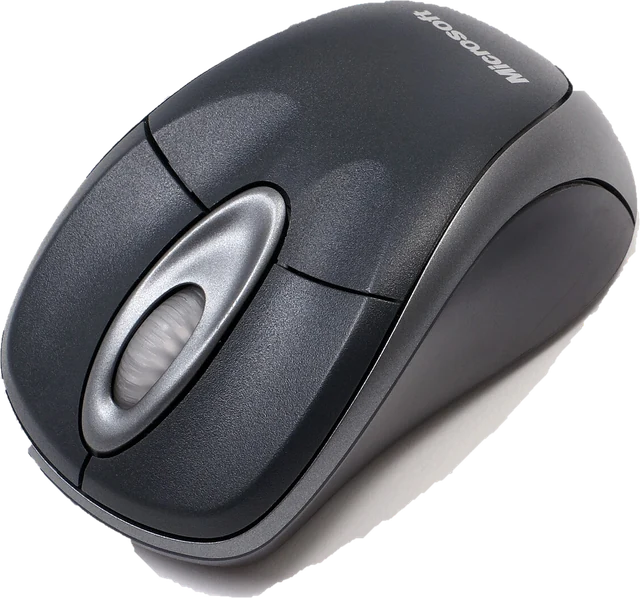 Mouse testCheck every button, side buttons and the scroll wheelDouble click testCatch a mouse that double clicks on its ownScroll wheel testFind a wheel that jumps or scrolls backwards
 Keyboard testPress every key, with ISO, AZERTY and QWERTZ layouts
 Controller testButtons, sticks, triggers and vibration for any gamepad
 Mic testLevel, clipping, noise floor and a playback check