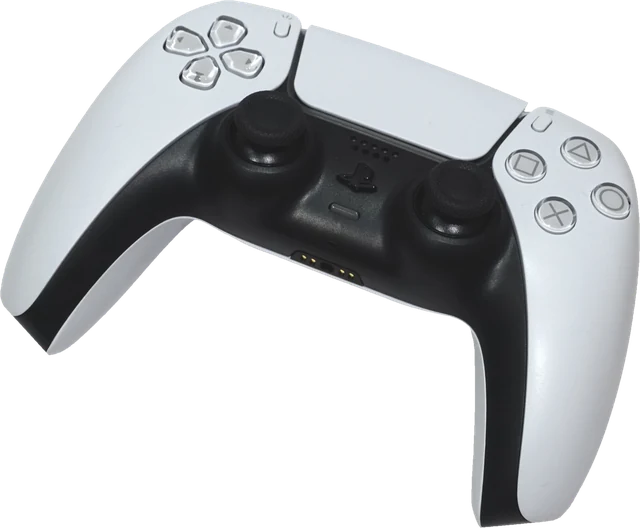
How to test a PS5 controller
Connect the DualSense to your computer or phone, click this page and press any button. Then go through the controller in order:
- Face buttons and d-pad. Cross, Circle, Square, Triangle and the four d-pad directions should each light up once per press.
- L1, R1, L3 and R3. Press the bumpers and click down on both sticks.
- Create, Options, PS and the touchpad. Pressing the touchpad down counts as its own button. On a PC the PS button may also open Steam; that is normal.
- L2 and R2. Squeeze each trigger slowly to the end. The bar should rise smoothly and the max should reach 100%.
- Sticks. Let go and check that both rest near 0.000, then roll each one around its edge.
The press counter goes up by one per press. If one press counts twice, that button is bouncing, an early sign of a worn switch.
USB or Bluetooth?
Both work for the button and stick test. USB is the most reliable: use a USB-C cable that carries data, since many phone charging cables do not. For Bluetooth, hold the PS button and Create together until the light bar flashes, then pair it in your computer's settings. If a PS5 is on in the same room, turn it off first or the controller may reconnect to the console. In Chrome and Edge, the DualSense gets the standard layout over both connections. Safari supports it on Mac, iPhone and iPad. Older Firefox versions mixed up the d-pad and right stick; update Firefox or switch browser if the diagram looks wrong.
Battery, motion and touchpad with WebHID
The browser's normal gamepad interface covers buttons, sticks and triggers only. In Chrome and Edge on a computer, the panel above can also read the DualSense directly through WebHID after you choose it in the browser's device prompt. It shows:
- Battery in 10% steps and whether it is charging.
- Gyro and accelerometer as raw sensor numbers. Turn and tilt the controller: the values should change smoothly and settle when it lies still. Values stuck at zero point to a sensor fault.
- Touchpad finger positions, so you can check every part of the pad responds.
The page only reads data from the controller. It does not change the light bar, adaptive triggers, calibration or firmware. Over Bluetooth the DualSense starts in a short report mode without battery data; the page asks for its calibration data once, which switches it to full reports in the same way a game does. If you see nothing, close Steam and DS4Windows, which can hold the controller.
PS5 controller drift
Stick drift is the most common DualSense fault: the stick reports movement when you are not touching it, so your view slowly turns or your character walks on its own. Watch the dot in each stick circle with your hands off the controller. If it rests more than about 0.05 from the centre, or wanders, run the stick drift test. It measures each stick over 8 seconds and tells you the dead zone to set, plus the fixes to try. The PS5 has no stick calibration menu, so cleaning, a game dead zone, the warranty or a stick replacement are the real options. The DualSense Edge lets you swap a drifting stick module without tools.
Adaptive triggers and haptics
L2 and R2 on this page show trigger travel, which catches a trigger that no longer reaches the end. The resistance effects of the adaptive triggers and the fine haptic motors are driven by commands from a game or the console, so a fair test of them is in a game such as Astro's Playroom. Vibration through the browser depends on your browser and system; if the vibration buttons do nothing, that alone is not a fault.
For other controllers, use the general controller test or the Xbox controller test.
Questions
How do I test my PS5 controller on a PC?
Connect the DualSense with a USB-C data cable, or pair it over Bluetooth by holding the PS and Create buttons until the light bar flashes and then choosing it in your computer's Bluetooth settings. Open this page, press any button, and every input shows up on the diagram.
How do I check my PS5 controller for stick drift?
Let go of both sticks and watch the values under each stick. Readings above about 0.05 at rest mean drift. The stick drift test records both sticks for 8 seconds and gives you the dead zone to set in your games.
Why does my DualSense not show up?
Press a button first: browsers hide controllers until you do. Then close Steam and DS4Windows, which can grab the controller, and check that your cable carries data. If the DualSense is still paired with a PS5 in the same room, it may connect to the console instead.
Can I check the DualSense battery level in a browser?
Yes, in Chrome or Edge on a computer. Press "Connect with WebHID" and pick the controller. The battery is reported in 10% steps. Other browsers and phones cannot read it.
Does the touchpad work in this test?
Pressing the touchpad down is a normal button and lights up the touchpad on the diagram in every supported browser. Finger positions on the touchpad are only available through WebHID in Chrome or Edge on a computer.
Can I test the adaptive triggers?
This page tests trigger travel from 0 to 100%, which shows a worn or blocked trigger. The resistance effects need the controller to receive commands from a game or the console, and this page deliberately sends nothing to the controller.
Does this work with the DualSense Edge and the PS4 DualShock 4?
Yes. The DualSense Edge shows up as a DualSense with the same buttons; its back buttons have no inputs of their own and act as whatever button you assigned to them. The DualShock 4 works the same way, with Share in place of Create.
Why is the d-pad or right stick wrong in Firefox?
Older Firefox versions mapped the DualSense badly: the d-pad was missing and the right stick was mixed up with a trigger. Update Firefox, or use Chrome or Edge, which have mapped the DualSense correctly for years.
More tests
 Controller testButtons, sticks, triggers and vibration for any gamepadStick drift testMeasure drift and get the dead zone to setXbox controller testXbox pad buttons, sticks, triggers and rumble
 Mouse testCheck every button, side buttons and the scroll wheel
 Keyboard testPress every key, with ISO, AZERTY and QWERTZ layouts
 Mic testLevel, clipping, noise floor and a playback check