How the stick drift test works
Each stick reports a position from -1 to 1 on two axes. A perfect stick at rest reads 0, 0. Drift is a stick that reports movement while nobody touches it, usually because dust or wear inside the stick sensor shifts the reading.
Step 1 records both sticks for 8 seconds, around 480 readings each on a 60 Hz screen, while the controller lies on a table. From those readings the page works out:
- Resting offset: the median distance from the centre. This is the drift figure in the verdict.
- Noise: how much the reading jitters (standard deviation). A noisy stick can twitch even when its average sits near the centre.
- Dead zone to set: a value that covers 99% of the readings at rest, or the median plus three times the noise if that is larger, plus a 0.02 margin.
The zoomed view on the right of each stick shows the cloud of resting readings and the suggested dead zone as a dashed ring. If the cloud sits off centre, the stick has drifted in that direction.
Step 2 records the outer edge as you roll each stick around. It reports the circularity error (how far the edge is from a perfect circle) and the lowest and highest reach in each quarter. A quarter that never reaches 0.95 means the game will not see a full push in that direction, which can feel like slow turning or walking instead of running.
How to read the verdict
| Resting offset | What it means | What to do |
|---|---|---|
| Under 0.05 | No drift. Normal for new and healthy sticks. | Nothing. Keep your usual dead zone. |
| 0.05 to 0.10 | Mild drift. Default game dead zones often hide it. | Set the suggested dead zone, then clean the stick. |
| 0.10 to 0.20 | Drift you will notice in aim and menus. | Clean, then claim warranty or replace the stick. |
| Over 0.20 | Severe drift or a failing sensor. | Repair or replace. A dead zone this large costs real precision. |
One note on precision: PlayStation sticks report in steps of about 0.008, so very small values jump between a few fixed numbers. That is normal. Steam Input and DS4Windows can add their own dead zone before the browser sees the stick, which hides drift, so close them before testing.
Where to set the dead zone in popular games
Most games use a 0 to 100 slider, so a suggested dead zone of 0.08 is 8. Menu names change between game versions; these are the usual places:
| Game or tool | Where to look |
|---|---|
| Fortnite | Settings, Controller tab: separate left stick and right stick dead zone sliders. |
| Call of Duty | Settings, Controller: dead zone inputs with a minimum value for each stick. |
| Apex Legends | Settings, Controller: the look dead zone option, with finer control under Advanced Look Controls. |
| EA SPORTS FC | We could not confirm an in-game stick dead zone slider. On PC, use Steam Input; on console, clean or repair the stick. |
| Rocket League | Settings, Controls: controller dead zone and dodge dead zone, on a 0 to 1 scale. |
| Steam Input (any PC game) | Steam settings, Controller, then the controller's calibration and advanced settings, or the stick settings in a game's controller layout. |
| DualSense Edge | On PS5, the controller's custom profiles include stick dead zones. |
How to fix stick drift
- Clean it. Turn the controller off. Blow compressed air around the base of the stick, tilt the stick to one side and put two or three drops of 99% isopropyl alcohol into the gap, then roll the stick around its edge 20 times in each direction. Let it dry for ten minutes and run the test again.
- Recalibrate. On a Switch, use the stick calibration in System Settings under Controllers and Sensors. On Windows, Steam can calibrate most controllers. The PS5 has no stick calibration menu. Calibration only moves the centre point; it does not repair wear.
- Set a dead zone in each game, using the value above, as a stop-gap.
- Use the warranty. Drift is a common warranty repair. Check the maker's warranty in your country; in the UK and EU you also have legal rights against the seller for faulty goods. Attach the copied result and a short video of the stick moving on its own.
- Replace the stick. Hall-effect or TMR replacement sticks use magnets instead of a rubbing contact and are far less prone to drift. On PlayStation and Xbox pads this needs soldering. The DualSense Edge has stick modules you can swap without tools.
Joy-Con drift
Joy-Con are well known for drift. Nintendo has repaired drifting Joy-Con free of charge in several regions, including outside the warranty in the US, so check Nintendo's support site for your country before paying for a repair. Joy-Con sticks are also sold as replacement parts that connect with a ribbon cable, no soldering needed.
To check every button, trigger and vibration motor as well, use the full controller test, or the PS5 and Xbox versions.
Questions
How do I test for stick drift?
Connect the controller, press any button, put it on a table and press "Start rest test". The page records both sticks for 8 seconds while nobody touches them. A stick that rests further than 0.05 from the centre is drifting. The result tells you the dead zone to set in your games.
What is a normal stick reading at rest?
A healthy stick usually rests within 0.01 to 0.03 of the centre. DualSense and DualShock sticks move in steps of about 0.008, so a reading like 0.004 or 0.012 is normal. From 0.05 upwards the stick is drifting, and above 0.10 most players notice it in games.
What dead zone should I use for stick drift?
Use the value this test suggests: it covers 99% of the readings at rest plus a small margin. Many games use a 0 to 100 slider, so 0.08 means 8. Set it a little higher if you still see slow movement in game, and keep it as low as you can, since a large dead zone makes small aim adjustments harder.
Can stick drift be fixed without opening the controller?
Sometimes. Dust under the stick is a common cause, and a few drops of 99% isopropyl alcohol at the base of the stick, followed by rolling it around many times, can clear it. If the sensor inside is worn, cleaning helps only for a short while and the stick module needs replacing.
Does recalibrating fix stick drift?
Calibration re-centres the stick, which helps when the centre point has shifted. It cannot repair a worn sensor, so the drift often returns. The Switch has a built-in stick calibration; the PS5 does not; on Windows, Steam can calibrate many controllers.
What is circularity error?
It is how far the outer edge of the stick differs from a perfect circle, averaged around the whole edge. Many healthy sticks read 5 to 15% because they report more than 1.0 on the diagonals. The more useful check is reach: every direction should get to at least 0.95, or the game may never see a full push that way.
Do Hall-effect sticks drift?
Hall-effect and TMR sticks measure position with magnets instead of a rubbing contact, so they do not wear the same way and are far less likely to drift. They can still read slightly off centre, so a small dead zone may be needed.
Can I use this result for a warranty claim?
Yes. Press "Copy result" for a short text with the resting offset, dead zone and range of each stick, and include it with a short video of the dot moving on its own. It also helps when selling a used controller.
More tests
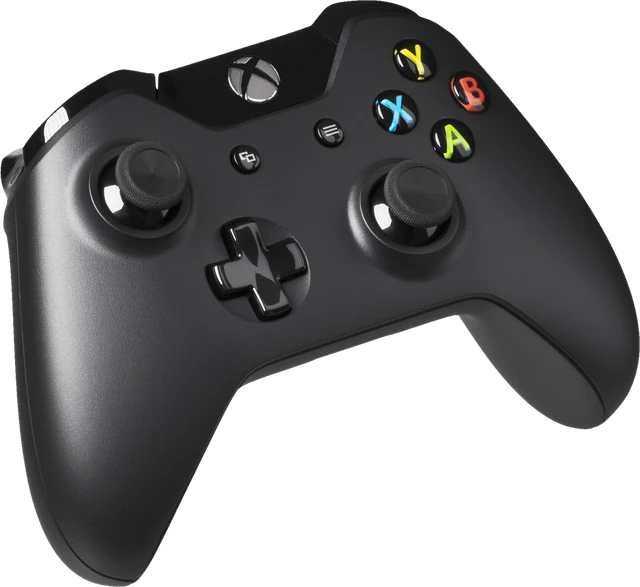 Controller testButtons, sticks, triggers and vibration for any gamepad
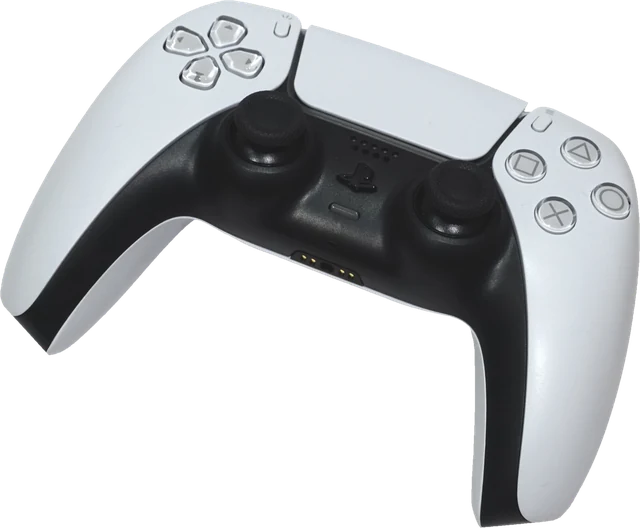 PS5 controller testDualSense buttons, sticks and triggersXbox controller testXbox pad buttons, sticks, triggers and rumble
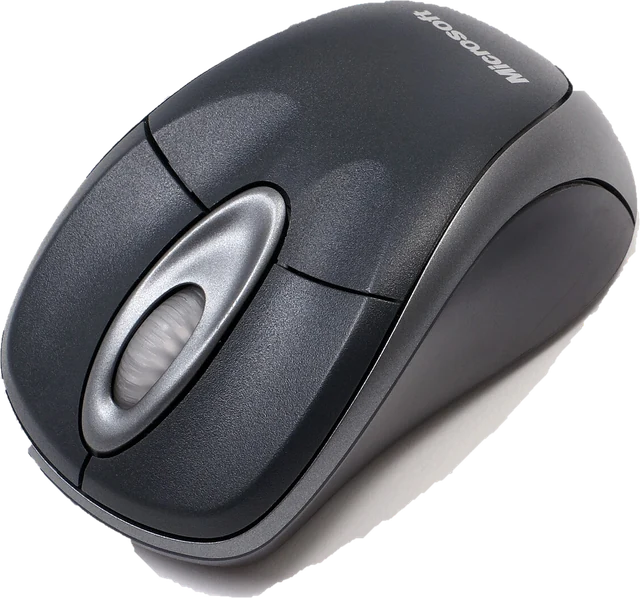 Mouse testCheck every button, side buttons and the scroll wheel
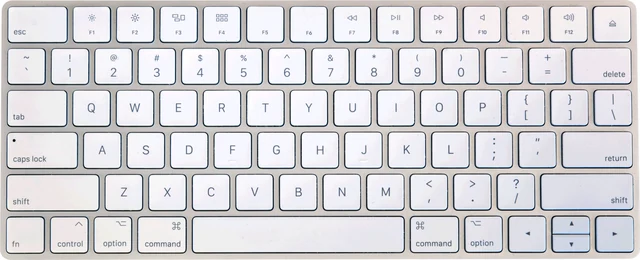 Keyboard testPress every key, with ISO, AZERTY and QWERTZ layouts
 Mic testLevel, clipping, noise floor and a playback check