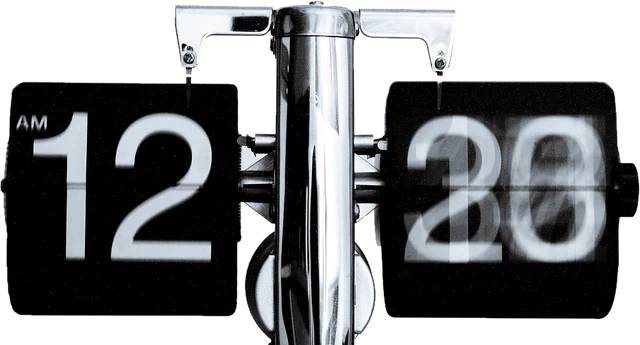
A flip clock for your desk, wall or TV
Flip clocks show the time the way old split-flap displays did: each card folds down to reveal the next number. This online flip clock runs in your browser, so any screen you already own becomes a desk clock. An old laptop, a tablet on a stand, a second monitor or the living room TV all work. The cards flip smoothly, the seconds tick by quietly, and the numbers grow to fill whatever screen you put them on.
A flip clock sits between analog and digital: the numbers are digital, but the way they change feels mechanical, like a clock where the numbers flip on little hinged cards. That makes it an easy big clock online for a room: a huge, readable desktop clock on a PC, a fullscreen clock on a Windows or Mac monitor, or a digital clock online that you can read from across the room. It is free, needs no app or account, and every theme, including the aesthetic flip clock look, works with or without seconds.
Settings
- Hours: 24 hour time, or 12 hour time with a small AM or PM label. The page starts with the format that is common for your language.
- Seconds: hide them for a calmer clock with two large cards.
- Date: the weekday and date under the clock, written in your page language.
- Theme: Classic, dark cards for most rooms; Retro, a warm vintage look; Aesthetic, soft colours with thin digits; Light for a bright office; and Night, a dim red that is easy on your eyes in a dark bedroom.
- Keep screen on: asks the browser not to let the screen dim or sleep while the clock is open.
Your choices are saved in this browser, so the clock looks the same next time you open it.
Retro and aesthetic flip clock themes
The Retro theme turns the page into a retro flip clock: cream cards with dark brown digits on a walnut background, the colours of the split-flap alarm clocks of the 1970s. It suits a vintage desk setup or a living room TV. The Aesthetic theme is an aesthetic flip clock for minimal setups and study streams: blush background, near white cards and thin mauve digits that stay quiet in the corner of your eye. Both flip the same way as the classic clock, and both work with or without seconds. If you were looking for a pink flip clock screensaver, Aesthetic is the closest: a soft pink background with pale cards.
How to show the clock on a TV
- Chromecast or Google TV: open this page in Chrome on a computer, choose Cast from the menu, then Cast tab.
- AirPlay: mirror a Mac, iPhone or iPad to an Apple TV or an AirPlay TV.
- HDMI: connect a laptop with a cable, move the window to the TV and press F.
- Smart TV browser: open the page directly in the TV browser and select Full screen.
Use it as a screensaver
Browsers cannot replace your system screensaver, but a full screen tab does the same job on a spare screen. Think of it as a free clock screensaver website: open it on Windows 11, macOS, a Chromebook or an iPad, press Full screen, and the controls and mouse pointer hide after a few seconds. The clock uses almost no power: it only checks the time a few times a second, and it stops completely when the tab is hidden, then jumps straight to the right time when you come back.
It is not a phone home screen widget either. A flip clock widget on a phone needs an app, while this page fills the whole screen of whatever device it is open on.
OLED burn-in
A clock is a static picture. The digits change, but the card outlines and the date stay in the same place. On an LCD that is harmless. On an OLED TV, monitor or phone, many hours every day at high brightness can leave a faint ghost of the cards. Use the dim Night theme, lower the brightness, keep the TV pixel shift feature on, and turn the clock off when nobody is looking at it.
More full screen screens
Prefer something that moves? Light the fireplace screen, watch the DVD screensaver hunt for the corner, run the green Matrix screen, or put up a no signal screen.
Questions
How do I make the flip clock full screen?
Press Full screen, press F, or double click the clock. The clock grows to fill the whole display and the controls hide after a few seconds. Move the mouse or tap to bring them back, and press Esc to leave.
Can I show the clock in 12 hour or 24 hour time?
Yes. Pick 12 hour or 24 hour in Hours. The page starts with the format that is usual for your language, and remembers your choice next time. In 12 hour mode a small AM or PM label sits in the hour card.
Will my screen stay on while the clock shows?
Yes, in most browsers. With Keep screen on pressed, the page uses the Screen Wake Lock feature so your monitor, laptop, tablet or phone does not dim or sleep. Battery saver can block it; if the screen still dims, plug in the charger or change the sleep setting.
Is this like Fliqlo?
It has the same idea: big flip cards with hours, minutes and optional seconds on a dark background. This one is a web page that runs in any browser, so it also works on a TV, a tablet or a Chromebook without installing anything, and it adds a light theme, a dim red night theme and the date.
How do I get a flip clock on my Mac or MacBook?
Open this page in Safari or Chrome on your MacBook Air, MacBook Pro or iMac and press F or Full screen. macOS has no flip clock in its own screen saver settings, so for a true system screensaver you need a separate screensaver app; for a clock on a spare screen or while you work, the full screen tab does the same job.
How do I get a flip clock on Windows or a laptop?
There is nothing to download: open this page in Edge, Chrome or Firefox on your Windows PC or laptop and press F. To keep it one click away, add the page to your bookmarks bar or use the browser's option to install the site as an app or create a shortcut. Windows 11 has no flip clock screensaver built in; its 3D Text screensaver can show the time, but not as flip cards.
Can I set the flip clock as my screensaver?
Not directly: a web page cannot install itself as the screensaver on Mac, Windows, a Chromebook or an iPad. What you can do is open the page, go full screen and press Keep screen on, so the clock stays up like a screensaver until you close it. Set your normal screensaver or sleep timer longer if it starts first.
How do I get a flip clock on an iPad?
Open this page in Safari on the iPad, tap Full screen and stand the iPad in landscape. Keep screen on stops it from locking in current versions of Safari; if it still locks, set Auto-Lock to Never in Settings while the clock is up. You can also use Share, then Add to Home Screen, to open it like an app.
Does the flip clock have a timer, stopwatch or countdown?
No. This page is a clock only: it shows the current time, with optional seconds and date. It has no countdown, stopwatch or pomodoro timer, so use a separate timer for study sessions and keep the flip clock up beside it.
Can I add the flip clock to Notion?
Not as an embed: this site does not allow other pages to frame it, so a Notion embed block stays blank. Add it as a link or bookmark in Notion instead, and open the clock in its own window or on a second screen next to your workspace.
When was the flip clock invented?
The Plato clock, one of the first flip clocks, was shown at the 1904 St. Louis World's Fair and sold by the Ansonia Clock Company. Electric flip clocks became popular in the 1960s and 1970s, with Japanese makers such as Copal building many of the desk and alarm clocks people remember.
Is there a retro or aesthetic flip clock theme?
Yes. Retro gives warm cream cards on a dark walnut background, like a flip clock from the 1970s. Aesthetic uses soft blush and mauve with thin digits for a calm, minimal desk setup. Pick either in Theme; your choice is saved for next time.
Can I use the flip clock on an OLED screen?
Yes, with some care. The card shapes stay in the same place, which can leave a faint mark on an OLED after many hours a day. Use the Night theme, which is dim, lower the brightness, and let the TV or monitor pixel shift feature run.
Is the time correct?
The clock shows your device time, which phones and computers keep in sync with internet time servers. If it is off, check the time zone and the automatic time setting on your device.
More tests
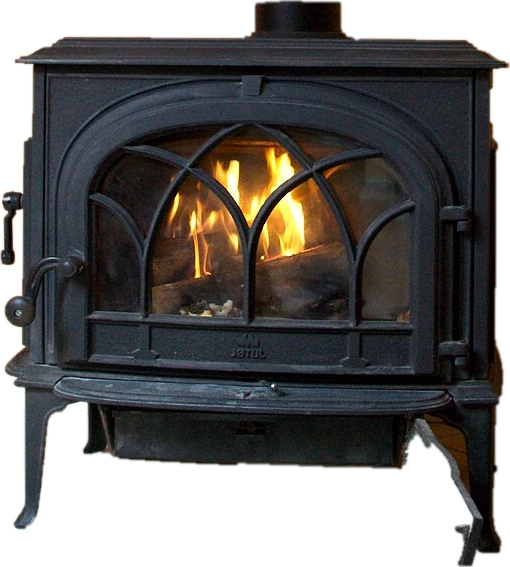 Fireplace screenA crackling fire for your TV or monitor
 DVD screensaverThe bouncing DVD logo, will it hit the corner?
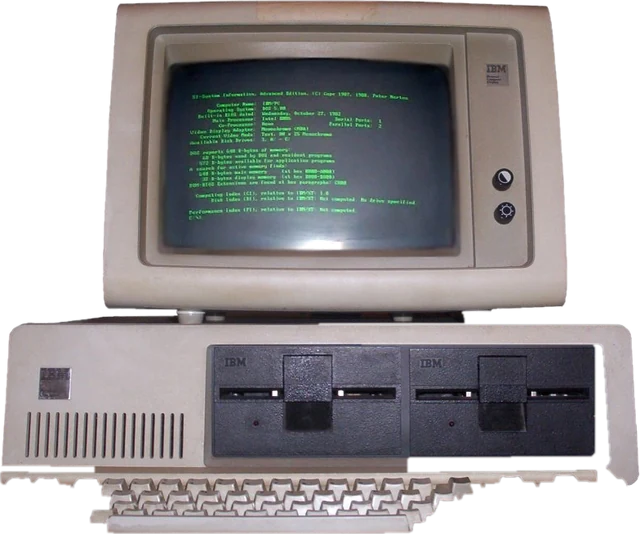 Matrix screenFalling green code, full screenNo signal screenTV color bars and No signal screenHacker typerType anything, look like a movie hacker
 AI agent screenA fake AI agent busy coding, with a token counter