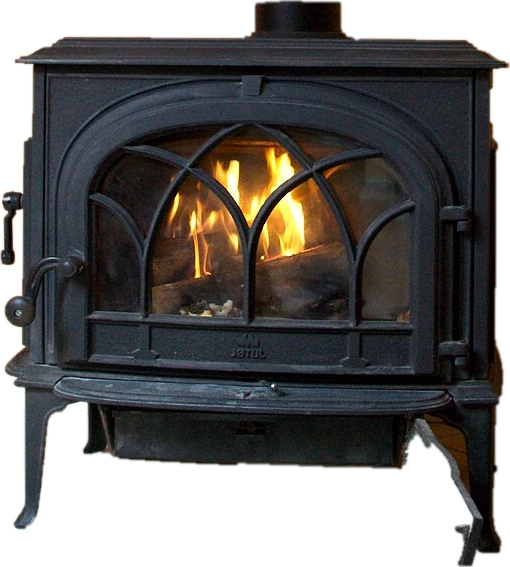
A virtual fireplace that runs anywhere
This fireplace screen is not a looped video. The flames are calculated live, frame by frame, so they never repeat and never show a jump where a clip starts over. Embers drift up, the coals glow, and the light on the bricks rises and falls slowly with the fire. Because nothing streams, it costs no data after the page loads and it keeps burning without internet.
Choose Fireplace for a brick hearth with a mantel, Campfire for a fire in a stone ring under the night sky, or Candles for three slow, quiet flames. The Flames slider sets how tall the fire burns, and Brightness dims the whole picture for a dark room.
The fire is drawn at your screen's own resolution, so it stays sharp as an HD or 4K virtual fireplace without a large video file. It is a digital fireplace for the eyes only: unlike an electric fireplace, a TV gives off no real heat.
How to put the fireplace on your TV
- Smart TV browser. Open the browser on your TV (Samsung Internet, LG web browser, Silk on a Fire TV or Firestick) and go to this page. Press Full screen with the remote.
- Chromecast or Google TV. In Chrome on a computer, open the menu, choose Cast, then Cast tab, and pick your TV. The crackle sound is cast with the tab. Go full screen on the computer.
- AirPlay. On a Mac, open Control Center, choose Screen Mirroring and pick your Apple TV or AirPlay TV. On an iPhone or iPad, mirror the screen and turn the device sideways.
- HDMI cable. Connect a laptop to the TV, set the display to duplicate or extend, move the browser window to the TV and press F.
On the TV, a Movie or Standard picture mode looks warmer and more natural than Vivid. If the fire looks too orange, lower Brightness rather than the TV backlight so the dark parts stay dark.
Use it as a screensaver or for sleep
Browsers cannot be set as the system screensaver on Windows 10, Windows 11 or macOS, but a full screen fireplace does the same job, with no ads interrupting the fire. Press Full screen and leave it. With Keep screen on pressed, the page asks the browser to stop the display from sleeping while the fire burns. Set the Sleep timer if you want to fall asleep to it: when time runs out, the fire and the sound fade out gently and the screen is allowed to sleep again.
The fire is built to be light on your device. It draws at your screen's refresh rate while you watch, drops to 30 frames per second when the window is in the background, and stops completely when the tab is hidden. Nothing on the page flashes; the light changes slowly, like a real fire.
A Christmas fireplace and yule log on your TV
The yule log fire on TV is a holiday tradition, and this page makes a simple virtual yule log for Christmas: choose Fireplace, turn on the crackle and leave it on the big screen through dinner. It also works as a Christmas fireplace background for a party or a family video call shared from your screen. For a fall evening, the campfire or candles with the sound on low give a quieter fireplace ambience.
OLED TVs and burn-in
Moving flames do not cause burn-in. The parts that stay still are the risk: the mantel, the brick wall, the logs and the candles. On an OLED TV or monitor, a few hours now and then is fine. If you plan to run it for many hours every day, keep Brightness around 70 to 80 percent, leave the TV pixel shift and screen saver features on, use the sleep timer, and switch between fireplace and campfire from time to time so the still parts change place. LCD screens do not burn in.
The crackle sound
The sound is made in your browser from filtered noise: a low roar of air and flame, with short random crackles and the odd louder pop of a log. It is off when the page opens, so it never surprises you. Press Crackle sound or M to turn it on and use the Volume slider. Candles get a much quieter version.
More screens for your TV
Want something else on the big screen? Try the flip clock for a full screen clock, the bouncing DVD screensaver, falling Matrix code, or a no signal screen with TV color bars.
Questions
How do I turn my TV into a virtual fireplace?
Open this page in your TV browser, or cast it. On Chrome, open the menu, choose Cast, then Cast tab and pick your Chromecast or Google TV. On a Mac, use Screen Mirroring to an Apple TV or an AirPlay TV. With a cable, connect the laptop by HDMI. Then press Full screen.
Does the fireplace screen have sound?
Yes. Press Crackle sound, or the M key, to hear a soft roar with random crackles and pops. The sound is generated live in your browser, not played from a recording, so it never loops. It is off when the page opens.
Can I make the fire turn off by itself?
Yes. Pick a time in Sleep timer. When it runs out, the fire and the sound fade out over a few seconds and the page lets your screen sleep again. Press Play to light it again.
Will a fireplace screen cause burn-in on an OLED TV?
The flames move all the time, so they do not burn in. The mantel, bricks and logs stay still, and on an OLED those can leave a faint mark after many long sessions at high brightness. Keep brightness around 70 to 80 percent, use the sleep timer, and leave the TV pixel shift feature on.
Does the virtual fireplace use a lot of data?
No. There is no video. The fire is drawn by a small script on your device, so after the page loads it uses no data at all, and it keeps burning if the internet drops.
Can I get a virtual fireplace on a Samsung smart TV?
Yes. Open the Internet app on the Samsung TV, go to this page and press Full screen with the remote. You can also mirror a phone or cast a Chrome tab to the TV, which works the same way on LG, Sony and other smart TVs.
Is this different from a Netflix or YouTube fireplace video?
Yes. Streaming services and YouTube offer recorded fireplace videos that stream all evening and loop at the end. This fire is drawn live in your browser, so it never loops, uses no data once loaded, has no video ads cutting in, and has a sleep timer.
Can I download the virtual fireplace as an MP4 or an app?
No. There is no app to install and no MP4 file to download; the fireplace runs online in any browser, including a Fire TV Stick or a smart TV. Once the page has loaded it keeps burning even if the internet drops.
Can I play Christmas music with the fireplace?
The page has crackle sound only, no music. For a virtual fireplace with Christmas music, play your own playlist on another tab, app or speaker and keep the crackle on low under it.
Why does my screen still go to sleep?
The page asks the browser to keep the screen on while the fire burns. Most current browsers allow it, but battery saver mode and some TV browsers ignore the request. If your screen still dims, turn off screen sleep in the device settings while you use the fireplace.
More tests
 DVD screensaverThe bouncing DVD logo, will it hit the corner?
 Flip clockFull screen flip clock
 Matrix screenFalling green code, full screenNo signal screenTV color bars and No signal screenHacker typerType anything, look like a movie hacker
 AI agent screenA fake AI agent busy coding, with a token counter