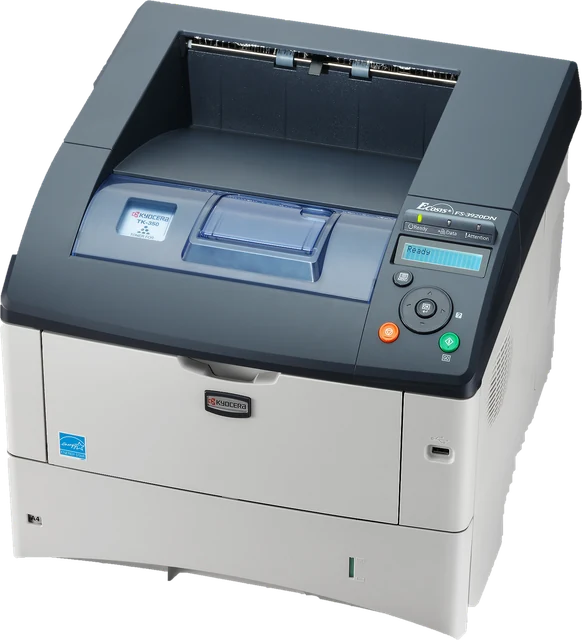
What you see, what it means, and the fix
Hold the printed page under good light and go through it section by section. Find what you see below. The fix depends on the kind of printer, so pick yours.
Thin white or light lines across the blocks (banding)
Means: on an inkjet, some nozzles are partly clogged or the print head is not moving evenly. On a laser, regular light bands usually point to low toner or a worn drum.
Inkjet fix: run Head cleaning from the printer's maintenance menu or app, then print with Nozzle check only turned on. Repeat once or twice if needed, with a few minutes between cleanings. If the lines stay, run Print head alignment. Printing in Standard or High quality instead of Draft also hides mild banding.
Laser fix: take out the toner cartridge, rock it gently side to side to spread the toner, and put it back. If the bands remain, the drum unit (built into the cartridge on many models) is worn and needs replacing.
A color is missing or the wrong color
Means: the nozzles for that ink are blocked, the cartridge is empty or not seated, or the protective tape is still on a new cartridge. If yellow prints as green or red, cyan or magenta is leaking into it or is missing from the mix.
Inkjet fix: check the ink levels, reseat the cartridge until it clicks, and remove any tape. Run a head cleaning and print the nozzle check. A printer that sat unused for months can need several cleanings, or a soak of the print head if it is removable.
Laser fix: check the toner level of that color in the printer's status page, reseat that cartridge and look for a shipping clip or seal. If the color is still missing, the cartridge or its drum has failed.
Streaks or lines running down the page
Means: on an inkjet, a dirty print head, a smeared encoder strip or paper rubbing the head. On a laser, a scratched or dirty drum, a dirty corona wire or a damaged fuser roller, often in the same place on every page.
Inkjet fix: run a head cleaning and the nozzle check. If streaks are smudgy rather than missing lines, set the right paper type, use thicker paper, and wipe the paper path rollers with a lint-free cloth.
Laser fix: slide the drum cleaner tab back and forth if the printer has one, and replace the toner or drum if the line stays in the same place. If copies show lines but prints do not, clean the scanner glass instead.
Everything looks faded or pale
Means: low ink or toner, a draft or ink saving mode, the wrong paper type setting, or (on a laser) toner saving or a low density setting.
Inkjet fix: set print quality to Standard or High and the paper type to the paper you use. Check ink levels, and replace a cartridge that is low even if the printer still allows printing.
Laser fix: turn off Toner save or Economode, raise the print density in the printer settings, and shake the toner cartridge gently. A cartridge that stays faded after that is nearly empty.
Doubled, jagged or blurry lines and text (misalignment)
Means: the print head is printing left to right and right to left slightly out of step, or the colors are not lined up. Look at the fine vertical lines, the color alignment columns and the small text.
Inkjet fix: run Print head alignment from the maintenance menu or app, and pick the most even pattern if it asks. Unidirectional or High quality mode also helps, at the cost of speed.
Laser fix: color laser printers have a Color registration or Calibrate option in their settings: run it. Blurry black text on a laser usually means damp paper or a worn fuser.
Smudges, smears or ink marks
Means: ink on the rollers or the paper path, paper that is too thin or damp, or on a laser a fuser that is not getting hot enough, so toner rubs off.
Inkjet fix: set the right paper type so the printer uses less ink on plain paper, let prints dry before stacking, and run the roller or paper guide cleaning from the maintenance menu.
Laser fix: if toner wipes off with a finger, the fuser is worn or set for the wrong paper weight: choose the right paper type, then replace the fuser if it continues. Use dry paper stored flat.
Spots or marks that repeat down the page
Means: something on a roller marks the paper once per turn. Measure the gap between the repeats with the ruler on the page: a gap of about 75 to 95 mm usually points to the drum and about 50 to 80 mm to the fuser, but check your printer's manual, which lists the exact roller sizes.
Inkjet fix: inkjets rarely do this. Clean the paper feed rollers with a damp lint-free cloth, and check for ink on the paper path.
Laser fix: match the gap to the manual's repeating defect table, then clean or replace that part: usually the drum or toner cartridge, sometimes the fuser.
Steps, blotches or grain in the tone ramps
Means: some steps in a smooth ramp are normal on plain paper. Clear blotches, a gap where a color starts, or highlights that vanish below 5% point to low quality settings or one weak ink.
Inkjet fix: print again at High quality on the paper type you use. If one color's ramp is patchy while the others are smooth, clean the heads for that color.
Laser fix: laser printers make grays from dots, so a fine grain is expected. Large blotches or a gray haze over white areas mean a failing drum or toner cartridge.
The rulers do not measure 10 cm or 3 inches
Means: the page was scaled, usually by Fit to page or Shrink oversized pages, or the paper size in the dialog does not match the paper in the tray.
Fix: print again with Scale set to 100% (or Actual size) and the same paper size as the tray. Borderless printing also enlarges the page slightly, so turn it off for this test.
Fix: print again with Scale set to 100% (or Actual size) and the same paper size as the tray.
How to print a test page
- Load plain paper in the size you picked above: A4 or US Letter.
- Press Print test page. The page uses your normal print dialog, so you choose the printer there.
- Set Scale to 100% (Chrome and Edge call it Default or Actual size). Turn off Headers and footers so the browser does not add a web address in the corners.
- For a black and white test, turn on Black ink only above and also choose Grayscale or Black and white in the dialog, or the printer may mix gray from color inks.
- Print, then compare the page with the guide above.
The page is built as one sheet at real size, so it fits A4 and Letter with 10 mm margins. If the dialog shows two pages, the scale is above 100%.
What each part of the page checks
- Color bars: cyan, magenta, yellow and black, the four inks in most color printers, plus red, green and blue, which the printer mixes from two inks each. Each bar also has a 50% and a 20% tint, which show weak or uneven ink better than a solid block.
- Tone ramps: smooth gradients from white to each full ink. Gaps or sudden jumps show a weak or blocked color. In black ink only mode the page also prints 1% to 10% and 90% to 100% steps, which show how many light and dark grays your printer can tell apart.
- Even patches: large flat areas make banding and streaks easy to see.
- Text: black text from 4 pt to 16 pt, and white text on black. Most printers render 6 pt cleanly; fuzzy 8 pt text points to alignment or paper problems.
- Fine lines and grid: lines from 0.1 mm to 1 mm, a millimetre grid and a fan of hairlines. Missing thin lines show a weak head or toner; broken or doubled lines show misalignment.
- Rulers: a 10 cm and a 3 inch ruler to confirm the page printed at true size.
- Nozzle check: blocks of very fine lines in a single ink each. On an inkjet, a missing line in the same place across a block is a clogged nozzle.
Your browser sends colors to the printer as screen colors (RGB), and the printer driver turns them into ink. Pure cyan, magenta and yellow on this page print with mostly one ink each on nearly every printer, but the driver decides, so treat the color bars as a practical check, not a lab measurement. For the exact nozzle test, use your printer's own one as well: it is called Nozzle check, Print quality report or Print quality diagnostic, in the printer's maintenance menu or its phone app, and it fires every nozzle directly.
Inkjet and laser printers fail in different ways
Inkjet printers spray tiny drops through hundreds of nozzles. If a printer sits unused, ink dries in some of them, which shows up as thin missing lines, banding or a missing color. That is why the fix is usually a head cleaning, and why printing a small page once a week keeps an inkjet healthy. Use Nozzle check only for that: it uses very little ink.
Laser printers fuse toner powder with heat, so they do not clog. Their faults come from parts that wear: the drum (repeating marks, gray haze, light bands), the fuser (toner that rubs off, repeating marks, creases) and the toner itself (faded print). Many laser printers can print their own configuration or cleaning page from the settings menu, which also shows the toner level.
Setting up a new screen as well? Check how its colors compare with print using the monitor calibration patterns.
Why we built this printer test page
When a printer starts to streak, fade or drop a color, the first step is a test page, and the built-in ones do not show much. The Windows test page is plain text and a logo, so it proves the printer is connected, not that it prints well. The printer's own nozzle check is useful on an inkjet, but it sits in a maintenance menu under a different name from maker to maker (Nozzle check, Print quality report, Print quality diagnostic), and working out what a fault means is left to you.
Nitin Raja, who builds this site, tested a lot of printer test pages before building this one, and kept only what people need: one sheet that shows every ink, prints at true size, and comes with a guide that matches each fault to a fix.
Inkjet and laser printers fail in different ways, so the guide gives a separate fix for each, and a nozzle check only mode keeps an inkjet in use with very little ink.
What this printer test page checks
Nothing is read from your printer: you judge the printed sheet by eye. Each part is explained in what each part of the page checks, and the fixes in what you see, what it means, and the fix.
- Inputs: paper size, Black ink only and Nozzle check only. The paper starts on US Letter when your browser's language setting names a Letter country, such as the US, Canada or Mexico, and on A4 otherwise. Your choices are kept only on this device.
- How the sheet is made: one drawing in millimetres, 190 by 255 mm, made in your browser as SVG. For printing, the page sets the paper size and 10 mm margins with the CSS @page rule, then opens your normal print dialog. Colors go to the printer as screen colors (RGB), and your printer driver turns them into ink. The date and time of printing go in the top corner.
- What the sheet shows: color bars with tints, tone ramps, even patches, text from 4 to 16 pt, lines from 0.1 to 1 mm, a 10 cm and a 3 inch ruler, and a nozzle check.
- Not measured: ink or toner levels, lab-grade color accuracy, print speed, or anything your printer's own diagnostics report. The page cannot see the printer; it only prints.
Why this printer test page is different
Each point below can be checked on this page.
- Nothing to download. No PDF and no program: the sheet is drawn in your browser and goes to the printer through the normal print dialog. Nothing is uploaded, there is no account and there are no ads.
- True size you can verify. The two rulers show at once whether the print dialog scaled the page.
- A fix for what you see. Nine common faults, each with what it means and separate inkjet and laser fixes. Pick your printer type to hide the other.
- Lighter modes. Black ink only prints gray versions of the color sections, and Nozzle check only prints just the nozzle blocks, which takes very little ink.
- Dated sheets. Each print carries its date and time, so you can compare a sheet from before a head cleaning with one from after.
- Clear about its limits. It tells you when to use your printer's own nozzle check, which fires every nozzle directly.
Questions
How do I print a test page?
Press Print test page above, pick your printer in the print dialog, set Scale to 100% (or Actual size), turn off Headers and footers, and print. Then compare the sheet with the guide on this page. Your printer's own maintenance menu also has a nozzle check, which fires every nozzle directly.
How do I print a test page on Windows 11?
Open Settings, Bluetooth and devices, Printers and scanners, choose your printer, then Print test page. That page is plain text and a logo, so it shows the printer is connected, not how well it prints. For colors, text and nozzles, print the page above.
How do I print a test page on a Mac?
Open System Settings, Printers and Scanners, select the printer and open its print queue. In the menu bar choose Printer, then Print Test Page. To check print quality, print the page above from Safari or Chrome with Scale set to 100%.
Why is my printer printing lines or streaks?
Thin light lines across the page on an inkjet are almost always partly clogged nozzles: run a head cleaning, then print the nozzle check again. Dark lines down the page on a laser printer usually come from a dirty or scratched drum, or a dirty scanner glass when copying.
Why is one color missing when the cartridge is full?
The nozzles for that color are clogged, the cartridge tape or seal is still on, or the cartridge is not seated. Run one or two head cleanings, wait a few minutes between them, and print the nozzle check. If the color is still missing, reseat or replace that cartridge.
Can I print a black and white test page?
Yes. Turn on Black ink only above, and in the print dialog choose Grayscale, Black and white or Black ink only too. Without that setting, many printers mix gray from all the color inks.
Does printing a color test page use a lot of ink?
The full page has solid color blocks, so it uses more ink than a page of text, but far less than a photo. To keep an inkjet healthy with very little ink, turn on Nozzle check only and print that page once a week.
Why do the colors on paper look different from my screen?
A screen makes color from light and a printer from ink, so bright screen colors, like pure green and blue, cannot be printed exactly. Plain paper also makes colors duller than photo paper. A clear color cast across the whole page usually means one ink is low or the wrong paper type is set.
Is this test page good for laser printers too?
Yes. Laser problems show up in the even patches, the gray ramps and the black text: repeating spots, faded areas, gray background haze and ghost images. Skip the nozzle check advice, since laser printers have no nozzles; the fixes for each problem are in the guide.
More tests
 Can my PC run itCheck popular games against your graphics card, CPU and RAM, no download
 Bottleneck calculatorWhich part limits first, CPU or GPU, at 1080p, 1440p and 4KFPS calculatorEstimated FPS in 60 games for your CPU, GPU and resolution
 What GPU do I haveYour graphics card, read by the browser, with its tier and what it runs
 GPU testA quick health check: renders correctly, runs smoothly, no artifactsGPU benchmarkFour short scenes, one score, average and 1% low frame rates