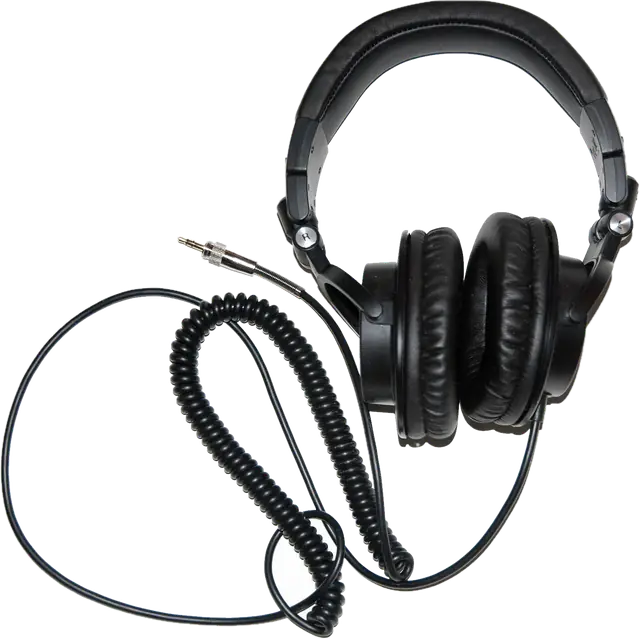
This headphone test checks the things that go wrong with headphones most often: one side silent, left and right swapped, mono instead of stereo, an uneven balance and reversed polarity. The quick headphone check plays four short sounds and asks where you heard each one, then gives you a plain answer and the next step. It works the same for wired headphones, Bluetooth headphones, earbuds, AirPods and gaming headsets, with nothing to install. If you only want a left right audio test or a stereo test, use the Left and right tab; the Polarity tab plays an in phase and an out of phase sound, and the Sweep tab glides from 20 Hz to 20 kHz so you can hear the range of your headphones. Every sound is made live in your browser, so a video upload or an MP3 conversion cannot swap or merge the channels. For speakers, a subwoofer or 5.1 and 7.1 surround, use our sound test instead.
How does the headphone test work?
Stereo sound has two separate channels, left and right, and headphones play each one into one ear. The test sends short bursts of pink noise (a soft hiss with more bass than white noise, which is easy to locate) to one channel at a time with the browser's Web Audio API. A sound sent only to the left channel must come only from your left ear cup. If it comes from the right, the channels are swapped somewhere; if it comes from both, something in the chain has mixed them into mono; if it comes from neither, that side is broken or muted.
The centre sound is the same noise on both channels at the same level. With even balance it seems to sit in the middle of your head. The polarity pair plays that centre sound twice: first in phase, then with the right channel turned upside down (every sample multiplied by -1). In phase sounds centred and full. Out of phase sounds wide, vague and thin in the bass, because the two sides push and pull against each other. If the second sound is the fuller one, one side of your headphones is wired in reverse.
Worked example: the quick check
Sound 1 is 6 bursts of 0.3 s, one every 0.5 s, on the left only: 3 seconds. You answer "Left ear only". Sound 2 is the same on the right, and you answer "Right ear only". Sound 3 is in the centre and you answer "In the middle of my head". Sound 4 plays 2.5 s in phase, a 0.6 s gap, then 2.5 s out of phase; you pick "The first". The verdict reads: your headphones work, left and right are correct, the balance is even and the polarity is correct. If you had answered "Right ear only" to the first sound and "Left ear only" to the second, it would say that left and right are swapped.
How to check your headphones: step by step
Step 1: Put your headphones on the right way round
Look for the L and R marks on the band, the ear cups or the earbuds. Set your system volume to about a quarter.
Step 2: Press Start headphone check
The check plays four short sounds: one on the left, one on the right, one in the centre, and a pair of sounds for polarity.
Step 3: Answer after each sound
Choose where you heard it. Press Play again if you missed it. The next sound plays as soon as you answer.
Step 4: Read the verdict
You get one plain sentence (working, swapped, mono or one side silent) and what to do next.
Step 5: Go further if you need to
Use the Left and right, Polarity and Sweep tabs to repeat a part, or play a sound that moves across from left to right.
Left right audio test
For a plain left and right audio test, open the Left and right tab and press Left, Centre and Right. Left must come only from the left ear, Right only from the right, and Centre from the middle of your head. "Left to right" moves the sound across in 5 seconds, which also shows a dead spot or a side that is quieter than the other. This is the same check people look for as an audio test left right, a left and right speaker test or an L R test.
What your answers mean
| Left sound heard in | Right sound heard in | Verdict | Usual cause |
|---|---|---|---|
| left only | right only | Working, left and right correct | The left sound came from the left only and the right sound from the right only. |
| right only | left only | Left and right swapped | Check that you are wearing them the right way round (look for L and R on the band or the earbuds). If they are, a cable, adapter or audio setting swaps the channels. |
| both ears | both ears | Mono: both ears get the same sound | Mono audio may be on in your accessibility settings, a Bluetooth headset may be in call (hands-free) mode, or a mono cable or adapter is in the way. See the stereo section below. |
| nothing | right only | Left side silent | Check the balance setting, push the plug fully in and try another device. If the left side stays silent everywhere, the left driver, cable or earbud is faulty. |
| left only | nothing | Right side silent | Check the balance setting, push the plug fully in and try another device. If the right side stays silent everywhere, the right driver, cable or earbud is faulty. |
| nothing | nothing | No sound reached the headphones | Check that the headphones are the selected output, the volume is up and nothing is muted, then run the check again. |
Headphone check: are my headphones working?
If you hear nothing at all, the problem is usually not the headphones. Check, in this order: that the headphones are the selected output (Windows: the speaker icon in the taskbar; Mac: Control Center, Sound; phones: the Bluetooth or audio output menu), that the volume is up and nothing is muted, that the plug is pushed fully into the jack, and that Bluetooth headphones are connected to this device and not still to another one. Then press Start again. If the test plays on your laptop speakers instead, the system has not switched to the headphones.
Why is sound only coming from one side of my headphones?
- Balance: Windows has left and right sliders under Settings, System, Sound, your output device, Properties; on a Mac the Balance slider is in System Settings, Sound, Output; on iPhone and Android there is a balance slider in the accessibility audio settings.
- The plug: a 3.5 mm plug that is not fully in often plays only one side or a thin, echoey sound. A case can stop it going all the way in.
- The cable: wiggle the cable near the plug and near the ear cup while Left or Right plays. Crackling or cutting out points to a broken wire.
- Wireless earbuds: each bud connects on its own. Put both in the case for a few seconds, take them out together, and check the battery of the silent one.
- Dirt: earwax on an earbud's mesh makes one side quiet rather than silent. Clean it gently with a dry, soft brush.
If one side stays silent on two different devices, the headphones are faulty on that side.
Headphones left and right swapped
First check that you are wearing them the right way round: most headphones mark the sides with L and R. On a 3.5 mm plug the tip carries the left channel and the ring the right, so a cheap adapter or a cable made the wrong way round swaps them. Some audio software, sound card control panels and accessibility settings can also swap channels. Games make the problem obvious: footsteps on your left are heard on your right.
Stereo test: do I hear mono or stereo?
If every sound in the test comes from both ears equally, you are hearing mono. The usual reasons are:
- Mono audio is switched on in accessibility settings (Windows: Settings, Accessibility, Audio; Mac: System Settings, Accessibility, Audio; iPhone: Settings, Accessibility, Audio and Visual; Android: Accessibility, Audio adjustment). It is meant for people who hear on one side only.
- A Bluetooth headset is in call mode: when an app opens the headset's microphone, many headsets switch from the stereo music profile (A2DP) to the hands-free profile, which is mono and sounds muffled. Close the call or voice chat app, or choose the stereo output in your sound settings.
- A mono cable or adapter, or a mono jack on the device.
Headphone polarity test: in phase and out of phase
Polarity means which way a driver moves for a positive signal. When both drivers move the same way, the sound is in phase and seems to sit in the middle of your head. If one is wired in reverse, every centred sound becomes out of phase: vocals sound vague and the bass gets thin, because bass in particular depends on the two sides working together. Play In phase and then Out of phase in the Polarity tab. The out of phase sound should be the strange, wide, hollow one. If it is the other way round, one side is reversed, which is rare in factory headphones and more common after a repair or with a hand-made cable.
Headphone frequency test: 20 Hz to 20 kHz sweep
The Sweep tab plays a sine tone that glides from 20 Hz to 20,000 Hz in 30 seconds on a log scale, so each octave takes the same time. Tap Mark when you first hear the tone and again when it fades out at the top. Most closed headphones and sealed earbuds play down to 20 to 30 Hz; at the top, the limit is usually your own hearing, which drops with age. A sudden loud or quiet patch during the sweep is a peak or dip in the headphone's sound. If the low end is weak on earbuds, try a bigger ear tip: a loose seal loses most of the bass. For deep bass only, use our bass test, and for exact tones, the tone generator.
Bluetooth headphones and AirPods test
Bluetooth headphones and AirPods take the same check. Before you start, turn off spatial audio and head tracking, which move sounds around on purpose, and any equaliser or "bass boost". Bluetooth adds a delay, often a tenth of a second or more, which you do not notice here but do notice in games and videos; our audio latency test measures it. If the sound turns muffled and mono when you join a call, the headset has switched to its call profile, as explained in the stereo section above.
Earphone and earbuds test
Earbuds need a good seal to sound right, so push them in firmly before you test. Run the quick check, then the sweep: weak bass on one side only usually means that bud is not sealed, or its mesh is blocked. True wireless earbuds connect each bud separately, so a silent side is often a bud that dropped its connection or has a flat battery.
Gaming headset test
For a gaming headset, run the quick check first, because swapped channels or mono audio ruin positional sound in games. Virtual 7.1 surround in headset software works by processing stereo, so the headset still has only a left and a right channel; this page tests those two. Test the microphone with our mic test.
Is it safe to test headphones at high volume?
Keep it low. Headphones put the sound right next to your eardrum, and the US National Institute on Deafness and Other Communication Disorders lists long or repeated exposure to sounds at or above 85 dBA as a risk for hearing loss. The page starts at 20% (-34 dBFS), never plays louder than -6 dBFS and warns above 60%. You do not need a loud level for any part of this test.
Why we built this headphone test
Most headphone test pages are a video or an audio file with "left" and "right" spoken over it, or a set of buttons with no explanation. A video can be uploaded or converted in mono, which breaks the very thing it claims to test, and a page that only plays sounds leaves you to work out what it means when you hear the wrong thing.
Nitin Raja, who builds this site, tested a lot of these pages before building this one, and kept what people actually need: a quick check that asks four simple questions and gives a plain answer, the common fixes for each result, and the manual tests for anyone who wants to dig further.
What this headphone test plays and checks
- Left, right and centre: pink noise in 6 bursts of 0.3 s, through a stereo panner set to -1 (left), 1 (right) or 0 (centre); 3 seconds each.
- Left to right: the same noise, panned from -1 to 1 over 5 seconds.
- Polarity: the noise through a 2,500 Hz low-pass filter on both channels, the right channel multiplied by 1 (in phase) or -1 (out of phase); 2.5 s each in the quick check.
- Sweep: a sine from 20 Hz to 20,000 Hz on a log scale over 30 seconds; Mark records the frequency at the moment you tap.
- Volume: 0 to 100%, capped at -6 dBFS, starting at 20%.
- The verdict comes only from your answers: working, swapped, mono, one side silent, no sound, plus notes on balance and polarity.
It does not use the microphone and cannot hear your headphones: every result is a listening check that depends on your answers. Sources were last checked October 25, 2026.
Why this headphone test is different
- A guided check with a verdict, not just buttons: four questions, one plain answer, the next step.
- Generated live, so the channels cannot be swapped or merged by a video upload or a file conversion.
- Polarity and a full sweep in the same place as the left and right test.
- Nothing plays on load, and the volume starts quiet with a hard cap.
- No app, no account, no microphone.
| This headphone test | Typical headphone test page or video | |
|---|---|---|
| Left and right | Generated live per channel | Often a video or MP3 that can be converted to mono |
| Tells you what is wrong | Verdict from your answers, with fixes | Rarely |
| Mono and swapped channels | Detected from your answers and explained | Left to you |
| Polarity test | Yes | Sometimes |
| Frequency sweep with marks | Yes, 20 Hz to 20 kHz | Sometimes a separate video |
| Volume | Starts quiet, capped at -6 dBFS | Usually whatever the file plays at |
How accurate is an online headphone test?
- The signals are exact: the left sound is only in the left channel, sample for sample. What can go wrong happens after the browser: settings, cables, Bluetooth profiles and the headphones themselves, which is what the test is meant to find.
- The verdict depends on your answers. Listen at a comfortable level and use Play again if you are unsure.
- Spatial audio, virtual surround, equalisers and mono audio settings change what you hear on purpose. Turn them off for the test.
- The sweep is not a lab measurement: the marks combine the headphones, your hearing and the volume.
- A browser cannot choose the output on phones and Safari; it plays on the current system output.
Sources
Checked on October 25, 2026:
- MDN Web Docs: StereoPannerNode (Web Audio API)
- MDN Web Docs: ChannelMergerNode (Web Audio API)
- Wikipedia: Stereophonic sound
- Wikipedia: Phone connector (audio), tip left, ring right
- Wikipedia: List of Bluetooth profiles (A2DP and the hands-free profile)
- Wikipedia: Hearing range
- NIDCD (NIH): Noise-induced hearing loss
Headphone test FAQ
How do I check if my headphones are working?
Put them on, set the volume low and press Start headphone check above. It plays a sound on the left, on the right and in the centre, then a polarity pair, and tells you whether your headphones work, are swapped, play mono or have a silent side. It takes about a minute.
Why does sound only come out of one side of my headphones?
Most often the plug is not pushed all the way in, the balance slider is set to one side, or mono audio is off and one channel is missing from the source. Try another device: if the same side stays silent, the cable, the driver or that earbud is faulty. On wireless earbuds, put both back in the case for a few seconds to reconnect them.
How do I know which side is left on my headphones?
Look for L and R printed on the headband, inside the ear cups or on the earbud stems. Then press Left in the Left and right tab: the sound must come from the ear marked L.
What does it mean if I hear the left sound in both ears?
Your audio is mono. Mono audio may be switched on in the accessibility settings, a Bluetooth headset may be in hands-free call mode (which is mono), or a mono adapter or cable is in the way.
Is this headphone test the same on earbuds and AirPods?
Yes. Earbuds and AirPods have a left and a right bud, so the same check works. Push them in for a good seal, especially for the polarity and bass parts, and turn off spatial audio first because it moves sounds around on purpose.
What is the headphone polarity test?
It plays the same sound on both sides, first in phase and then with one side inverted. In phase sounds centred and full. Out of phase sounds wide, hollow and thin in the bass. If the out of phase sound is the fuller one, one driver is wired the wrong way round.
How do I test my headphone frequency range?
Open the Sweep tab and press Start sweep. The tone glides from 20 Hz to 20 kHz in 30 seconds; tap Mark when you first hear it and when it fades. The marks depend on your headphones, your hearing and the volume, so use them to compare, not as a lab measurement.
Can this test my headphone microphone?
This page tests the speakers in your headphones. To test a headset microphone, use our mic test, which shows the level, clipping and noise and lets you play your voice back.
Related tools
 Sound testSpeaker and headphone test: left, right, sweep and bass
 Bass testSubwoofer test: a 10 to 200 Hz sweep, crossover check and rattle finder
 Tone generatorAny frequency from 1 Hz to 22 kHz: sine, square, sweep and beats
 Hearing frequency testThe highest and lowest tones you can hear (not a medical test)
 Mic testLevel, clipping, noise floor and a playback checkAudio latency testSpeaker to microphone delay, measured with a click