
A GPU test checks that your graphics card works the way it should. This GPU test online runs in your browser in about 25 seconds, with no download, so you can test a video card on any PC, laptop or phone: it reads which graphics card the browser reports and whether it really uses it, draws a test image on the GPU and checks the colours that come back, plays a short animation at a moderate load to measure smoothness, and asks you whether you saw artifacts, the coloured dots, lines and flickering blocks that a failing or overheating card draws. It is a health check, not a speed test, so it is gentle enough for any laptop or phone. If it finds a problem, or you want more, this page is also the start of our GPU tools: a GPU stress test for heat and throttling, a GPU benchmark for a score, a volume shader test, and a WebGL test for browser support.
How does this GPU test work?
- Graphics card. The page reads the renderer name the browser reports through WebGL. A software renderer (such as SwiftShader or Microsoft Basic Render Driver) means the browser is not using your GPU at all.
- Render check. It draws a gradient where red rises left to right and green bottom to top, then reads four pixels back. All four must match to within about 2%. Wrong colours point to a driver fault.
- Smoothness. It measures your refresh rate, finds how much the GPU can draw per frame, then plays 15 seconds at 60% of that. A healthy card holds your refresh rate with few stutters (frames over 2.5 times the usual frame time).
- Artifacts. Your eyes are better at spotting glitches than any browser measurement, so the test asks you.
Worked example: reading the smoothness line
"Steady at 119 fps on a 120 Hz screen, 1% low 95 fps, stutters in 15 seconds: 2" is a pass: the card held the refresh rate at a moderate load, and two hitches in 15 seconds is normal for a browser with other things running. "61 fps on a 120 Hz screen, 1% low 18 fps, stutters in 15 seconds: 40" at the same moderate load would be a Problem: something is holding the card back, often a laptop on battery, the browser running on the wrong GPU, or heat.
How to test your GPU: step by step
Step 1: Close games and video, and plug in a laptop
Other apps using the graphics card make the smoothness check less reliable. On battery, laptops slow their graphics down.
Step 2: Press Start GPU test
The page reads the graphics card your browser reports, draws a test image and reads it back, then plays a 15 second animation at a moderate load.
Step 3: Watch the animation closely
Look for flicker, flashing blocks, coloured dots, lines or a checkerboard pattern. Then answer the question under the animation.
Step 4: Read the checklist
Each check says OK, Check or Problem. The sentence on top sums it up, and the sections below explain what to do about anything that failed.
Step 5: Go deeper if you need to
For heat and throttling, run the GPU stress test for 3 to 5 minutes. For a score, run the GPU benchmark.
How to check if your graphics card is working properly
A graphics card that works properly does four things: the system uses it, it draws correctly, it holds a steady frame rate under load, and it stays stable as it heats up. This GPU test covers the first three in seconds. For the fourth, run the GPU stress test for 3 to 5 minutes and watch for a falling frame rate or a driver reset. In Windows, Device Manager (Display adapters) should list the card without a warning icon, and Task Manager (Performance, GPU) should show it working while a game or the test runs.
GPU artifacts: what they look like
Artifacts are the clearest sign of a graphics card problem. Watch the animation for these:
- Sparkles or coloured dots that appear and vanish, often green, purple or white. Often video memory errors or an unstable memory overclock.
- Lines and stretched triangles shooting across the screen. Usually an unstable core overclock, overheating or a driver fault.
- Checkerboard or blocky patterns, sometimes over the whole screen. Often failing video memory.
- Flicker or flashing black frames. Can be a driver, a cable or a monitor problem as well as the card; try another cable and port.
- Wrong colours, such as a pink or green tint everywhere. Check the cable and monitor first, then the driver.
Artifacts that appear only after a few minutes of load point to heat. Artifacts on the desktop, before any load, point to hardware or a cable. Artifacts that move with the picture are made by the GPU; marks that stay in one place on the screen are more likely dead or stuck pixels, which our dead pixel test checks.
What to do if the GPU test fails
- Software rendering: turn on hardware acceleration in the browser and restart it. The WebGL test has steps for each browser.
- Render check wrong: update or reinstall the graphics driver from NVIDIA, AMD or Intel. Our graphics driver finder points to the right download.
- Not smooth: plug in the laptop, set the browser to use the dedicated GPU (Windows Settings, System, Display, Graphics, High performance), close other apps, and run again.
- Artifacts: undo any overclock, check temperatures with a monitoring tool, clean the cooler, and run the stress test. If they stay, test the card in another PC if you can.
- Driver resets: reinstall the driver cleanly, check the power cables to the card, and test with a native tool.
Which GPU test do you need?
| Question | Tool | Time |
|---|---|---|
| Does my graphics card work properly? | GPU test (this page) | 25 seconds |
| Does it slow down or crash when hot? | GPU stress test | 1 to 10 minutes |
| How fast is it? | GPU benchmark | About a minute |
| How does it handle one very heavy shader? | Volume shader test | As long as you like |
| Does my browser support WebGL 2 and WebGPU? | WebGL test | 1 second |
| Which graphics card do I have? | What GPU do I have | Instant |
| Where does my card rank? | GPU tier list, GPU comparison | Instant |
| Will a game run on it? | Can my PC run it | Instant |
| Is my CPU holding it back? | Bottleneck calculator | Instant |
GPU test on laptops, Macs and phones
The test runs in any browser with WebGL2 or WebGPU. On laptops with two graphics chips, the browser may run on the built-in one to save power; that is normal, but it means the test checks that chip, not the gaming GPU, unless you set the browser to High performance in Windows graphics settings. Macs with Apple silicon have one graphics chip, so the test always checks it. Phones and tablets pass the smoothness check at their own refresh rate, often 60 or 120 Hz.
Why we built this GPU test
When a game stutters or strange dots appear on the screen, the first question is whether the graphics card is at fault at all. The usual GPU testers (OCCT, FurMark, GPU-Z) are downloads built for long sessions and detailed monitoring, and a full stress run is more than many people need for that first answer. It also skips a common cause: a browser or a laptop that is not using the graphics card you think it is.
So this test answers the basic questions in about 25 seconds, with a load gentle enough for a phone: which chip the browser uses, whether it draws correctly, whether it runs smoothly, and whether you saw artifacts. It asks you about artifacts instead of pretending a browser can see your screen, and this page explains what to do about each check that fails. Nitin Raja, who builds this site, tested a lot of GPU test sites and tools before building this one, and kept only what people need: a quick health check in plain words, and a clear pointer to the deeper test when something fails.
What this GPU test measures
There are no settings: you press Start and answer one question at the end. The steps are described in how this GPU test works; this is what the code reads and the thresholds it uses.
- Graphics card: the name from the browser's
WEBGL_debug_renderer_infoextension. Names such as SwiftShader, llvmpipe or Microsoft Basic Render Driver mark software rendering. - Render check: WebGL2 draws a 128 x 128 test gradient and
readPixelsreads four points back. Each colour channel must be within 6 of 255 of the expected value. - Smoothness: WebGPU where available, otherwise WebGL2. After measuring the refresh rate and the load your GPU can hold, the page times every frame for 15 seconds at 60% of that load. It passes when the frame rate stays at 90% of the refresh rate or more with no more than 8 stutters a minute (a stutter is a frame over 2.5 times the usual frame time).
What it does not measure: temperature, clock speed, power draw, video memory errors or performance over minutes. It also cannot choose the graphics chip. The page asks for the high-performance GPU, but Chrome and Edge on Windows do not act on that request, so on a laptop with two graphics chips the test usually checks the built-in one until you set the browser to High performance in Windows graphics settings.
How accurate is an online GPU test?
- The render check and the frame times are measured, not estimated: the page reads real pixels back and times every frame.
- The artifact check is yours. Browsers cannot see what reaches your screen, so the test asks you and labels that line as your check.
- 15 seconds is short. Heat problems take minutes to show; that is what the stress test is for.
- No sensors, no memory test. A browser cannot read temperatures or test video memory cell by cell. Repeated artifacts are the best browser-level sign of memory trouble.
- The name is what the browser reports. Some browsers hide it or give a generic class.
Why this GPU test is different
Each of these points can be checked on this page:
- Nothing runs until you press Start. No result is filled in beforehand, and the test stops by itself when you switch tabs.
- Measured where it can be, asked where it cannot. The render check and frame times are real measurements; the artifact line is labelled as your own check.
- It checks which chip is drawing. Software rendering is flagged as a problem, because then the browser is not using your graphics card at all.
- OK, Check or Problem for each line, with the thresholds above, so you can see why a check failed.
- No account, nothing uploaded. The graphics engine makes no network requests; the result stays on your device unless you copy it.
This GPU test vs downloadable GPU testers
| This GPU test | Downloadable testers (OCCT, FurMark, GPU-Z) | |
|---|---|---|
| Install | None | Download and install |
| Time | About 25 seconds | Minutes |
| Render correctness | Pixel read-back of a test image | OCCT checks for errors in its 3D test |
| Video memory test | No | OCCT has a VRAM test |
| Temperatures and clocks | No | Yes (GPU-Z, OCCT) |
| Phones, Macs, Chromebooks | Yes | Mostly Windows |
| Cost | Free | Free tiers available |
Sources
- Khronos, WebGL 2.0 specification (readPixels, fences); W3C, WebGPU.
- MDN, WEBGL_debug_renderer_info (how the browser reports the GPU).
- Microsoft, Timeout detection and recovery (why drivers reset).
GPU test FAQ
How can I test my GPU online?
Press Start on this page. In about 25 seconds it checks that your browser uses the graphics card, that the card draws a test image correctly, that an animation runs smoothly, and asks whether you saw artifacts. For longer tests, use the GPU stress test or the GPU benchmark on this site.
How do I know if my graphics card is failing?
Typical signs are artifacts (coloured dots, lines or blocks), driver resets where the screen goes black and comes back, crashes only in games, and frame rates far below what the card should do. Run this test and the stress test; if problems repeat after a clean driver install, the card or its power supply may be at fault.
What are GPU artifacts?
Visual errors the graphics card draws by mistake: sparkling coloured dots, stretched triangles or lines, checkerboard blocks, flickering textures. They usually point to overheating, an overclock that is too high, a driver problem or failing video memory.
Can a GPU test damage my graphics card?
No. This test uses a moderate load for 15 seconds, less than a game. Even a full stress test is safe for a healthy card, which slows itself down if it gets too hot.
Why does the test not show my graphics card name?
Firefox and Safari often report a generic name to make tracking harder, and some browsers hide it entirely. The test still works; to find the exact model, check Device Manager in Windows or About This Mac.
What is the difference between a GPU test and a GPU benchmark?
A GPU test checks that the card works properly. A benchmark measures how fast it is and gives a score. A stress test checks that it stays fast and stable under a long full load.
All GPU tools
 GPU stress testLoad your graphics card for up to 10 minutes and watch for throttling
 GPU benchmarkFour short scenes, one score, average and 1% low frame rates
 Volume shader testA raymarched 3D fractal cloud with a live frame rate
 WebGL testWebGL 1, WebGL 2 and WebGPU support, renderer and limits
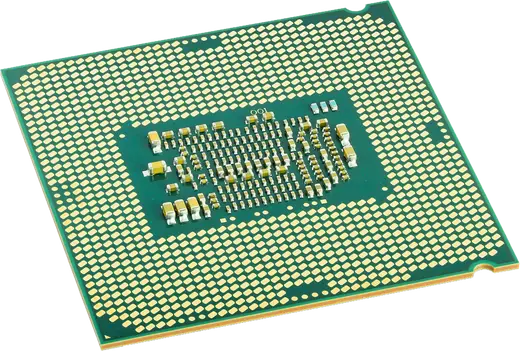 Bottleneck calculatorWhich part limits first, CPU or GPU, at 1080p, 1440p and 4K
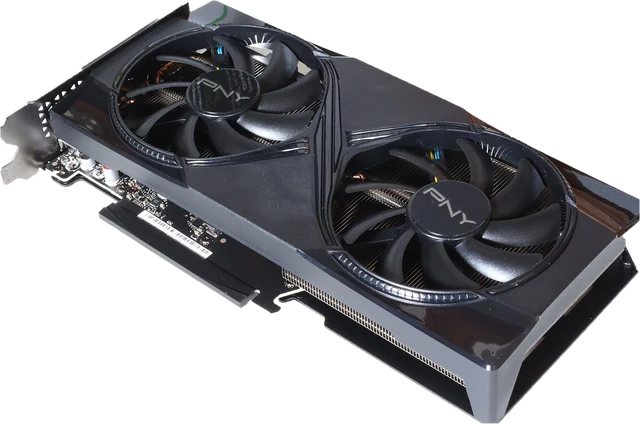 Can my PC run itCheck popular games against your graphics card, CPU and RAM, no download