What this keyboard latency test measures
When you press a key, a chain of things happens before you see a letter on screen. The switch closes, the keyboard firmware confirms it, the keyboard waits for the computer to poll it, the operating system passes the key on, the browser hands it to the page, the page draws, and the monitor shows the new frame. People call the total keyboard latency or input lag.
A web page, including this online test, only sees the middle of that chain. Every key event carries a time stamp set when the browser created it. This test records the clock the moment its first listener runs and subtracts that stamp. The result is the browser input delay: how long the browser and page took to start handling your press. It then waits for the next animation frame and records time to next frame, the first moment the press can begin to be drawn. Both are labelled Measured because they come straight from the browser clock, which is shown as the timer step.
What it does not measure is just as important. The switch, debounce, keyboard scan and USB polling all happen before the browser stamps the event, and the compositor and monitor happen after the frame starts. Measuring those needs a high speed camera or a hardware tester. So this page never prints a single "keyboard latency" number. If a site shows one from a web page, it is either this browser delay under another name or a guess.
How to read your result
- Browser input delay, median. The headline number. Under 4 ms is excellent, under 10 ms is good. On an idle desktop in Chrome or Edge it is often below 2 ms.
- Average and min / max. The average is pulled up by the odd slow press; the median is not. A large maximum with a small median means occasional hiccups.
- Jitter. The standard deviation of the delay. Under 1 ms is steady. Above 3 ms, something in the background keeps interrupting the browser.
- Time to next frame. Includes the input delay plus the wait for the next screen refresh, so it depends on your monitor. At 60 Hz the wait averages about 8 ms, at 144 Hz about 3.5 ms. If it is much longer than one refresh, frames are being held up.
Tick "Simulate a busy page" to see what a slow website does: the page blocks itself for 30 ms of every 100 ms and the same measurement jumps. That is the kind of delay this test can catch on your own system.
Typical numbers for the parts a browser cannot see
Independent lab tests give a rough picture. Debounce in keyboard firmware is often set around 5 ms, though some gaming keyboards use faster schemes. USB polling adds up to 8 ms at 125 Hz and up to 1 ms at 1000 Hz. Measurements of whole keyboards, from pressing the key to the USB report, range from about 2 ms for fast gaming boards to over 40 ms for some office and older keyboards. Monitors add one refresh plus their own processing, roughly 5 to 30 ms. These figures are approximate and vary by model, so treat them as a guide, not a result for your keyboard. If you are choosing a keyboard, look for a reviewer's latency list measured with hardware tools rather than a web page.
Hall effect keyboards with magnetic switches and rapid trigger mainly shorten how far a key travels before it registers and remove switch debounce. That happens inside the keyboard, so this test treats them like any other board. Rhythm game players, for example in osu!, often watch the jitter figure here, since an occasional late key hurts timing more than a steady delay. For the mouse side of a mouse and keyboard latency check, run the mouse polling rate test.
How to lower input lag
- Use a cable or a 2.4 GHz receiver. Bluetooth keyboards often add several milliseconds.
- Set the polling rate to 1000 Hz in the keyboard app and confirm it with the keyboard polling rate test.
- If your keyboard app has a debounce or "rapid trigger" setting, a lower debounce cuts delay. Raise it again if keys start to double type.
- Use the monitor's fastest refresh rate and its game or low latency mode. Check it with the refresh rate test.
- If the browser input delay here is above 10 ms, close heavy tabs, extensions and background apps, then test again.
Why the browser clock matters
Browsers blur their clock on purpose to block timing attacks. Chrome and Edge give normal pages a 0.1 ms clock, and this page asks for cross-origin isolation, which allows a clock of a few microseconds. Firefox and Safari often round to 1 ms. With a coarse clock each press reads as a whole step, so look at the median and average over 20 or more presses rather than single values.
Questions
How do I test my keyboard latency?
Click the test box above and press keys one at a time at a normal pace, about 20 times. The test measures how long your browser takes to hand each press to the page and how long until the next frame can draw it, and shows the average, median, jitter and a live chart.
Can a website measure my keyboard's real latency?
No. The delay inside the keyboard (switch, debounce, scanning and USB polling) and the delay of the display happen before the browser sees the key or after the page draws it. Measuring those needs a high speed camera or a hardware tester. Sites that print a full keyboard latency figure from a web page are guessing. This page measures only the browser part and says so.
What is a good keyboard input delay?
For the browser part measured here, under 4 ms is excellent and under 10 ms is good. On an idle desktop with Chrome or Edge it is usually below 2 ms. Higher numbers mean the browser or computer is busy, not that the keyboard is slow.
What is input lag?
Input lag is the whole time from pressing a key to seeing the result on screen. It adds up from the keyboard, the USB link, the operating system, the app or game, the graphics card and the monitor. On a typical setup it is tens of milliseconds, and most of it comes from the keyboard and the display.
What does jitter mean in this test?
Jitter is how much the delay changes from one press to the next, shown as the standard deviation in milliseconds. Under 1 ms is steady. High jitter means background work sometimes holds the browser up, which you feel as an occasional late key rather than a constant delay.
Why is time to next frame higher than input delay?
A screen only updates once per refresh. After the page handles a key it waits for the next frame to start, which takes up to one refresh interval: up to about 16.7 ms at 60 Hz and 6.9 ms at 144 Hz. A faster monitor shortens this wait.
Does keyboard polling rate affect latency?
Yes, a little. A key press waits for the next USB poll before it is sent: up to 8 ms at 125 Hz and up to 1 ms at 1000 Hz. That wait happens before the browser stamps the event, so it does not show up here. Check your rate with the keyboard polling rate test.
How can I reduce keyboard input lag?
Use a wired or 2.4 GHz connection instead of Bluetooth, set the polling rate to 1000 Hz, pick a keyboard with low debounce time, use a high refresh rate monitor in its fastest mode, and close heavy apps. In games, cap the frame rate a little below the refresh rate and turn on low latency modes.
How do I test wireless keyboard latency?
Not fully in a browser. The wireless link sits before the browser stamps the key, so this test reads the same for a wireless and a wired keyboard on the same computer. A high speed camera filming the key and the screen is the practical home method; lab measurements usually show a 2.4 GHz dongle close to wired and Bluetooth noticeably slower.
Why does Firefox or Safari show 0 or 1 ms?
Those browsers round their clock to about 1 ms for privacy, so each press reads as 0 or 1 ms. The average over many presses is still useful, but the minimum, maximum and jitter are rough. Chrome and Edge give a much finer clock on this page.
More tests
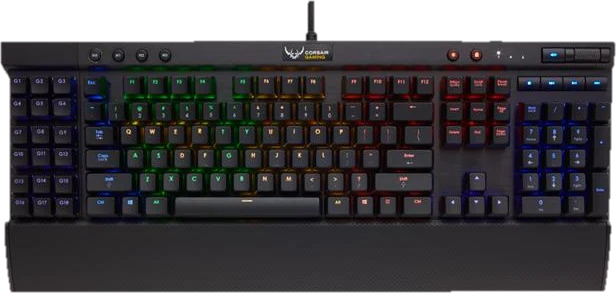 Keyboard testPress every key, with ISO, AZERTY and QWERTZ layoutsGhosting testHow many keys register at once
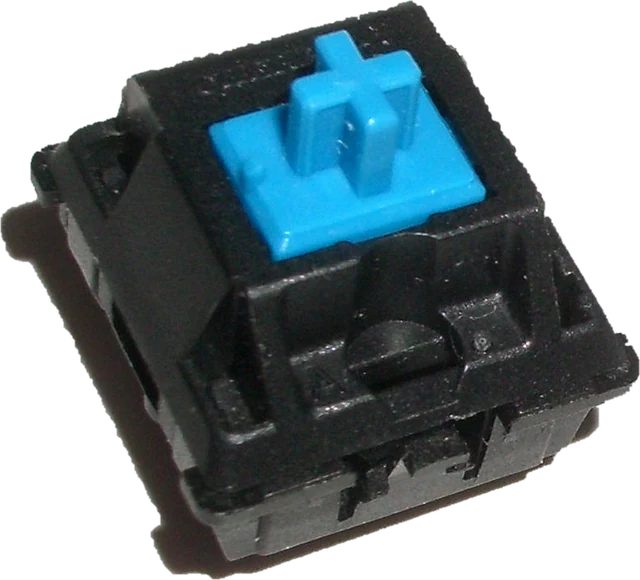 Keyboard chatter testFind keys that type twice (double typing)Key drop testHold a key and catch signal dropsKeyboard polling rate testEstimate your keyboard report rate (Hz)
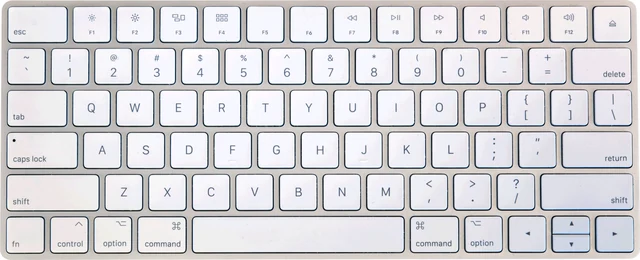 Mac keyboard testMacBook and Magic Keyboard, every key