How to calibrate your monitor, step by step
Do this once, in the light you normally work in. Change one setting at a time in the monitor's on-screen menu (OSD), and come back to the pattern after every change.
- Prepare. Let the screen warm up for 20 to 30 minutes. Set it to its native resolution, browser zoom to 100%, and Windows HDR off for now. In the monitor menu, pick the Standard, User or sRGB mode and turn off dynamic contrast, eco or energy saving modes and any light sensor. Turn off Night Light, Night Shift or other blue light filters while you test.
- Brightness. On a PC monitor, Brightness sets the backlight. Open the Viewing angle grey at 75%, or a white screen, and hold a sheet of white paper next to it: the screen should look about as bright as the paper, not like a lamp. That is close to the 100 to 150 nits used for photo work in a normal room. On a TV, the setting called Brightness changes the black level instead, so set it with the black level test.
- Contrast. Open White level. Raise contrast until the white looks clean, then lower it until the squares near 250 appear. On most LCD monitors the factory default is already right, so only lower it if squares are missing.
- Black level. Open Black level in a dim room. Aim to see from about step 3 to 5. If the low steps are hidden, try a lower gamma setting or the black equalizer first; if nothing under 17 shows, fix the RGB range in your graphics driver and monitor.
- Gamma. Open Gamma, step back and see which square blends in. Pick 2.2 in the monitor menu if it has a gamma setting. Many monitors label it as modes (Gamma 1 to 4), so try each and keep the one that blends at 2.2.
- Colour temperature. Choose the preset called 6500K, Normal, Warm or sRGB; 9300K or Cool looks blue. Then check the grey ramp in Colour. If greys still look tinted, use the User or Custom RGB gain sliders in small steps, lowering the colour that is too strong rather than raising the others.
- Sharpness. Open Sharpness and set the neutral value: no halos around the text, but crisp 1 px lines. On many TVs that is 0, on many monitors the middle or default value.
Then run the gamma and black level tests once more, because contrast and colour changes move them a little.
Windows and Mac calibration tools
Windows: search the Start menu for Calibrate display color (dccw.exe). The wizard walks through gamma, brightness, contrast and colour balance and saves the result as a profile. Do the monitor's own settings first, because the wizard can only bend the signal in the graphics card, which costs some smoothness. For HDR screens, install the free Windows HDR Calibration app from the Microsoft Store. It sets the darkest and brightest levels your screen can show so that HDR games and Auto HDR map correctly.
Mac: on macOS Ventura and later, open System Settings, Displays, click the Color profile menu, choose Customize, then the plus button to start Display Calibrator Assistant. On older versions it is under System Preferences, Displays, Color, Calibrate. It builds a profile for white point and, in some versions, gamma.
What a browser test cannot do
Everything on this page is a Check: your own eyes judge it. A web page cannot see the light your screen gives off, so it cannot measure brightness in nits, the white point in kelvin, colour error (delta E) or how much of sRGB or DCI-P3 the panel covers. Your eyes also adapt: after a minute, a slightly blue white starts to look white. The only number the page reports, the pattern size and display scale, is what the browser itself says.
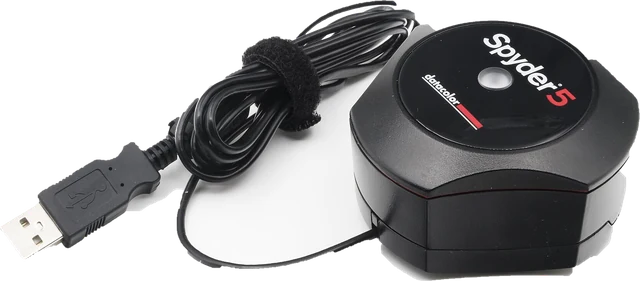
A hardware colorimeter is a small sensor that sits on the screen while software shows hundreds of colours and measures each one. It then writes a profile that corrects the screen, and tells you how accurate it is. If you edit photos or video for print or clients, or need two screens to match, that is the method to use. For gaming, office work and watching films, careful setup by eye with these patterns fixes the common problems: wrong gamma, crushed shadows, clipped highlights, a blue tint and oversharpening.
One more limit: browsers manage colour. If your system has a colour profile installed, the patterns pass through it, so the test shows the screen and the profile together, which is what your other apps show too.
Banding, 6-bit panels and dithering
Many budget and laptop panels are 6-bit with frame rate control (FRC), which flickers between two levels to fake the missing ones. Hard bands in a gradient that disappear when you switch the monitor to its sRGB or Standard mode come from a picture setting, not the panel. Bands that appear only after loading a colour profile come from the profile's curve.
Laptops, phones and TVs
Laptop screens usually have no menu, so use the Windows or Mac wizard after turning off adaptive brightness and content adaptive brightness. On a phone, choose the natural or sRGB screen mode, turn off auto brightness and adaptive colour, and use the colour, gradient and grey ramp patterns to check for tints and banding; that is how to check mobile screen colour accuracy by eye. On a TV, choose Movie, Cinema or Filmmaker mode, which already turns off most processing, then set Brightness with the black level test, Contrast with the white level test and Sharpness at its neutral value.
More screen checks
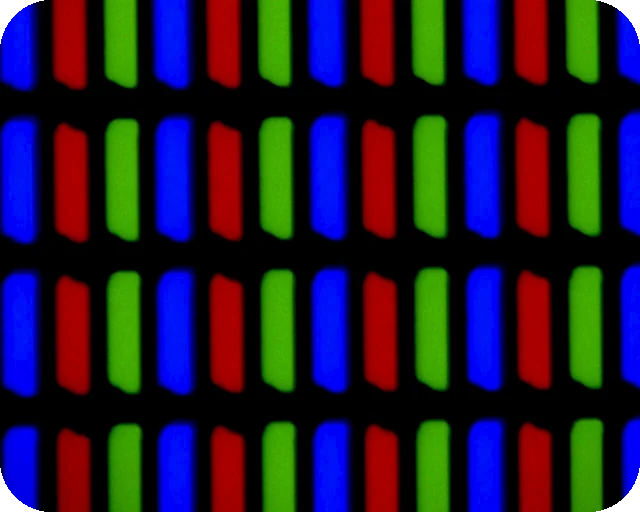
Look for faulty pixels with the dead pixel test, check corners and edges on dark scenes with the backlight bleed test, find flicker with the monitor flicker test, confirm your screen runs at its rated speed with the refresh rate test, and on an OLED, check grey uniformity and burn-in with the OLED test.
Questions
How do I calibrate my monitor without a calibration tool?
Reset the monitor to its standard or sRGB mode, turn off dynamic contrast and eco modes, then go through the patterns on this page in order: brightness, contrast with the white level test, gamma, colour temperature and sharpness, changing one setting at a time in the monitor menu. Finish with the calibration wizard built into Windows or macOS. It will not be as exact as a hardware colorimeter, but it fixes most badly set screens.
What is a gamma test?
A gamma test shows fine black and white lines next to solid grey squares. The lines always average 50% light. Each square is the grey that gives 50% light at one gamma value, so the square that blends into the lines when you step back shows your screen's gamma. The standard for Windows, macOS and the web is 2.2.
What gamma should my monitor be set to?
Use 2.2 for normal desktop use, photos, games and the web, because that is what sRGB content expects. A 2.4 setting suits films in a dark room. 1.8 was the old Mac standard and makes everything look washed out on a modern system.
What should I see on a black level test?
On a well set monitor you can see most of the 20 squares, at least from about step 3 to 5 upwards in a dim room. If nothing below step 8 to 10 shows, shadows are crushed. If nothing below about 17 shows, the PC and the monitor most likely disagree on the RGB range (full versus limited).
Why are the white saturation squares invisible?
If the squares from 235 to 254 merge into the white background, the contrast setting is too high or the picture is clipped by an RGB range mismatch. Lower contrast a few steps until the squares near 250 appear, and check that your graphics driver and monitor use the same range.
Can you calibrate a monitor with a website?
You can adjust it by eye, which is enough to fix wrong gamma, crushed blacks, clipped whites and too much sharpening. A website cannot measure brightness, white point or colour accuracy, because a browser has no way to see the light your screen gives off. For colour critical work you need a hardware colorimeter and its software.
Why does the gamma test look wrong or show coloured lines?
The fine lines only work when each line lands on exactly one row of screen pixels. Set browser zoom to 100% with Ctrl+0 (Cmd+0 on a Mac), use the screen at its native resolution and open the pattern in full screen. If the lines still shimmer or look coloured, the panel struggles with fine line patterns and the reading is rough.
What is the best sharpness setting for a monitor?
The neutral setting, where the picture is neither softened nor sharpened. On many TVs that is 0; on many monitors it is the middle or default value. Raise sharpness until the 1 px lines look crisp, and lower it as soon as you see white or dark outlines around text and lines.
How do I check my phone screen colour accuracy?
Turn off auto brightness, night mode and any adaptive or true tone colour, choose the natural or sRGB screen mode, then look at the colour bars, gradients and grey ramp here. Greys should look neutral with no tint, and gradients should be smooth. Your eyes can spot a strong tint or banding, but exact colour accuracy needs a colorimeter.
More tests
 Dead pixel testFull screen colours to spot dead and stuck pixels
 Black screenA full black screen, one clickWhite screenA full white screen, one click
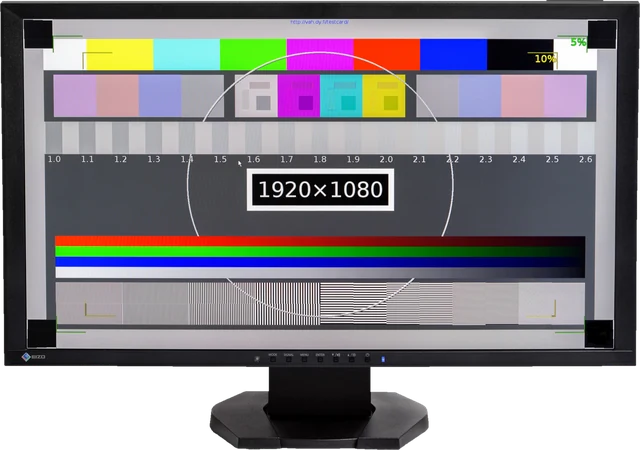 Refresh rate testYour monitor Hz, measured in the browser
 What is my screen resolutionScreen resolution, browser window size and pixel ratioMonitor size calculatorScreen size in inches, PPI and aspect ratio