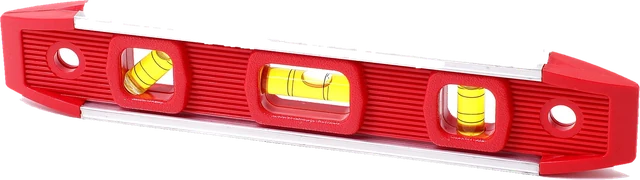
This bubble level turns your phone into a spirit level in the browser: a leveler app with nothing to install. Lay the phone on a shelf, a table or the floor and the round bubble shows which side is high, or stand it on an edge against a picture frame, a TV or a door frame and the tube vial works like a carpenter's level. The page gives the angle in degrees and the slope in percent, mm per metre and inches per foot, and says plainly when the surface is level. Like any bubble level app it is only as good as the phone's sensor, so it has a two-step calibration that cancels the phone's own error, a lock to read the result after you take the phone away, and an optional beep or buzz when you reach level. Below: how it works, the slope conversions, and when a real spirit level is the better tool.
How does a bubble level app work?
Every phone has an accelerometer, which feels gravity. The phone combines it with the gyroscope into orientation angles, and the browser passes two of them to the page: beta (front to back tilt) and gamma (left to right tilt). The page turns them into the direction of "up" in the phone's own axes and measures two things from it:
- Surface mode: how far the screen is tilted away from facing straight up. Left to right tilt = atan(x / z), front to back tilt = atan(y / z), and the total tilt combines both. The bubble moves the way a real bubble would, towards the high side.
- Edge mode: with the phone standing on an edge, the angle of "up" within the screen, measured from the nearest of the four edges. The tube vial turns to lie along the edge that is down.
Slope in percent is the tangent of the angle times 100: rise per 100 of run. mm per metre is ten times the percent, and inches per foot is the percent times 0.12. Readings are smoothed so the bubble does not jitter.
Worked example: the camera bump
Lay a phone on its back on a perfectly level table. Its camera bump, say 1.5 mm high and about 130 mm from the bottom edge, lifts the top: atan(1.5 / 130) = 0.66 degrees, a slope of 1.15 percent. Without calibration, the level would say "almost level, 0.7 degrees off" on a table that is perfect. Calibration measures once, turns the phone 180 degrees on the same spot and measures again: the table's own slope reverses between the two readings while the bump and sensor error stay the same, so their average is the phone's error, which the page then removes.
How to use the bubble level: step by step
Step 1: Open the page on your phone
The level reads the phone's tilt sensor, which phones and tablets have and computers almost never do.
Step 2: Tap Start level
On iPhone and iPad, Safari asks for motion access: tap Allow. Nothing is read before this tap.
Step 3: Choose surface or edge
Surface mode: lay the phone flat on a shelf, table or floor. Edge mode: stand it on one of its edges against a picture frame, a TV or a door frame.
Step 4: Read the bubble and the angle
The bubble moves to the high side, like a real vial. Below 0.3 degrees the page says Level; it also shows the slope in percent, mm per metre and inches per foot.
Step 5: Calibrate once
Under More options, run the two-step calibration: measure, turn the phone 180 degrees on the same spot, measure again. It cancels the phone's own error, including a camera bump.
Surface level or edge level: which mode?
Use surface mode for anything you can put the phone on: a shelf, desk, table, floor, a washing machine top, a camper floor or a tripod plate. It checks both directions at once. Use edge mode for things you hold the phone against: a picture frame, a TV, a monitor, a door or window frame, a cabinet front. Stand the phone on its long edge for long objects; the vial follows whichever edge is down, and the reading is the tilt along that edge. For a vertical check (plumb), stand the phone on its bottom edge against the post: 0 degrees means plumb.
Slope in degrees, percent, mm per metre and inches per foot
Building rules give slopes in different units. The page shows all of them at once; this chart and table convert the common ones, all computed from their rise and run.
| Slope | Rise | Percent | Degrees | mm per metre | in per foot |
|---|---|---|---|---|---|
| Camera bump example above | 1.5 mm over 130 mm | 1.15% | 0.66° | 11.5 | 0.138 |
| 1/8 inch per foot (drain pipe 3 to 6 in) | 1/8 in per 12 in | 1.04% | 0.60° | 10.4 | 0.125 |
| 1:50 (2 percent) | 1 per 50 | 2.00% | 1.15° | 20.0 | 0.240 |
| 1/4 inch per foot (drain pipe up to 2 1/2 in) | 1/4 in per 12 in | 2.08% | 1.19° | 20.8 | 0.250 |
| 1:20 (walkway that is not a ramp, ADA) | 1 per 20 | 5.00% | 2.86° | 50.0 | 0.600 |
| 1:12 (steepest ADA ramp) | 1 per 12 | 8.33% | 4.76° | 83.3 | 1.000 |
The International Plumbing Code asks for at least 1/4 inch per foot on drain pipes of 2 1/2 inches or less and 1/8 inch per foot on 3 to 6 inch pipes. Under the ADA standards a walking surface steeper than 1:20 counts as a ramp, and a ramp may be at most 1:12. A phone level is fine for checking these by eye; inspectors and builders use proper levels.
How to calibrate a phone level
- Find a flat, steady surface. It does not have to be perfectly level, only steady.
- Start the level, choose the mode you will use, put the phone down and tap Calibrate step 1 under More options.
- Turn the phone 180 degrees on the same spot (surface mode), or flip it end to end on the same edge (edge mode), and tap Calibrate step 2.
- Done: the average of the two readings is the phone's own error, and it is removed from now on. It is saved on this device only, separately for surface mode and for each edge. Reset clears it.
Zero is quicker but different: it makes the current surface read 0. Use it to compare other things with a reference surface, not as a true calibration.
Is my shelf, desk or picture frame level?
For a shelf or desk, use surface mode in the middle and near each end: if the readings differ, the shelf sags or twists. For a picture frame, use edge mode with the phone's long edge on top of the frame, then turn the frame until the page says Level. For a TV or monitor on a wall mount, hold the phone's long edge against the bottom of the screen bezel, not the stand. Keep the phone case on or off for both calibration and measuring, since a case changes how the phone sits.
How to level a washing machine or fridge
Put the phone on the top of the machine, front to back and side to side, in surface mode. Turn the adjustable feet until the page says Level or almost level, then tighten the lock nuts. Washing machines spin more quietly when level; many fridge makers suggest a slight tilt backwards so the doors swing shut, so check the manual before you level it exactly.
Leveling an RV, camper or trailer
Put the phone on the floor or on a counter you know is parallel to the floor, in surface mode, and read the left to right and front to back angles. Fix side to side first with blocks under the low side, then front to back with the tongue jack. Lock the reading if you need to walk to the wheels, or use the beep so you can hear it reach level from outside. Calibrate once at home on a steady surface; the calibration stays on the phone.
Bubble level on iPhone and Android
On iPhone, open this page in Safari, tap Start level and then Allow: iOS asks for motion access on every site that uses the tilt sensor. Apple's own Measure app also has a Level tab, which is a good second opinion. On Android, Chrome, Edge and Samsung Internet work without a prompt, and the Vibrate option can buzz the phone when level (iPhone browsers cannot vibrate a web page). Google search has also shown a simple bubble level card for searches made on phones; it has no calibration or edge mode.
Bubble level app vs a real spirit level
A spirit level is a glass vial with a bubble, read against marks, and a decent one is far more precise than a phone. A phone has the advantage of numbers: degrees, percent, a lock and a beep, and it is always in your pocket. Use the phone for pictures, furniture, appliances, camping and quick checks; use a real level for tiling, framing, decking, shelves that carry heavy loads and anything an inspector will check.
Why does my level app show the wrong angle?
- Not calibrated. The sensor is never perfectly aligned with the case. Run the two-step calibration.
- Camera bump or case. Lying on its back, the bump lifts one end. Calibrate the way you will measure, or measure on the edge.
- The phone is moving. Hand-held, the bubble wanders. Put the phone down and let go for a second.
- Wrong mode. Surface mode needs the phone lying flat, edge mode needs it standing on an edge; the page tells you when the phone is in neither position.
- Browser rounding. Browsers may round sensor values slightly to protect privacy, so tiny changes can show in steps.
Why we built this bubble level
Many bubble level apps wrap the bubble in ads, and many web levels we tried start reading on a laptop that has no sensor, or never mention calibration, so a camera bump becomes a "not level" verdict on a perfect table.
Nitin Raja, who builds this site, tested a lot of these pages before building this one, and kept what people need: one big Start button, a bubble that behaves like a real one, the numbers builders use, and a calibration that actually cancels the phone's error.
What this bubble level measures
- Tilt from the orientation angles beta and gamma the browser reports (deviceorientation), turned into the up direction in the phone's axes. Phones that send no orientation events but do send gravity (devicemotion) use gravity instead.
- Surface mode: left to right and front to back tilt and the total; edge mode: the tilt along the edge that is down, from the nearest of the four edges.
- Slope: tan(angle) x 100 percent, x 1,000 mm per metre, x 12 inches per foot.
- Calibration: the average of two readings 180 degrees apart, stored in this browser for surface mode and each edge.
It does not measure distance, height or the true level of a surface beyond the phone's accuracy, and it cannot work without a tilt sensor. Nothing is uploaded. Sources were last checked October 25, 2026.
Why this bubble level is different
- A real calibration: the reversal method used to check spirit levels, kept on your device.
- Both modes on one page, surface and edge, with a vial that turns to the edge that is down.
- The units builders use: degrees, percent, mm per metre and inches per foot together.
- Honest on computers: no fake bubble on a laptop, a link to your phone instead.
- No app, no ads in the tool, no account, and nothing starts until you tap.
| This bubble level | Typical leveler app or page | |
|---|---|---|
| Install | None, runs in the browser | App download, often with ads |
| Calibration | Two-step flip, saved per mode and edge | Often a single zero, or none |
| Units | Degrees, percent, mm/m, in/ft | Usually degrees only |
| Edge mode | Yes, follows the edge that is down | Varies |
| On a laptop | Says there is no sensor, offers the phone link | Often a frozen bubble |
How accurate is this bubble level?
- It depends on the phone's accelerometer. After calibration, expect a few tenths of a degree on a steady surface; before it, a degree or more is common.
- The Level verdict uses 0.3 degrees, about 5 mm per metre. A good spirit level is far finer, so do not use the phone for work that must pass an inspection.
- Hold still: the reading is smoothed, but a phone in the hand is never steady.
Sources
Checked on October 25, 2026:
- W3C: Device Orientation and Motion specification
- MDN Web Docs: DeviceOrientationEvent.requestPermission()
- MDN Web Docs: Navigator.vibrate()
- Apple: Use iPhone as a level (Measure app)
- U.S. Access Board: ADA Accessibility Standards, 403 Walking surfaces and 405 Ramps
- International Code Council: International Plumbing Code 2021, chapter 7, Table 704.1 (slope of horizontal drainage piping)
Bubble level FAQ
How accurate is a bubble level app?
After calibration, a phone level is usually good to a few tenths of a degree, enough to hang a picture, level a shelf, a washing machine or a camper. Without calibration it can be off by a degree or more. For building work, use a real spirit level: a good one is far more precise.
How do I calibrate a phone level?
Put the phone on a flat, steady surface, tap Calibrate step 1, turn the phone 180 degrees on the same spot and tap step 2. The page averages the two readings, which cancels both the sensor's offset and the slope of the surface. The result is saved only on your device.
Why does my level app not show 0 on a flat table?
Three usual reasons: the camera bump tilts the phone when it lies on its back, the sensor is not perfectly aligned inside the phone, or the table is not level. Calibration fixes the first two; turning the phone 180 degrees tells you about the third.
Does this level work on a laptop?
Almost never. Desktops and nearly all laptops have no tilt sensor, so there is nothing to read. Some 2 in 1 tablets do have one. On a computer, the page offers a link to open it on your phone instead of a fake bubble.
What is the difference between degrees and percent slope?
Degrees measure the angle; percent is the rise per 100 of run. 1 degree is about 1.75 percent, or 17.5 mm per metre, or about 0.21 inches per foot. Plumbing and accessibility rules usually give slopes as a ratio, percent or inches per foot.
Does iPhone have a built-in level?
Yes. Apple's Measure app has a Level tab. This page adds an edge mode on the same screen, percent and inches per foot, a lock, and a two-step calibration that it keeps, and it also works on Android.
Is my data uploaded?
No. The tilt readings and the calibration stay in your browser; nothing is sent anywhere.
Related tools
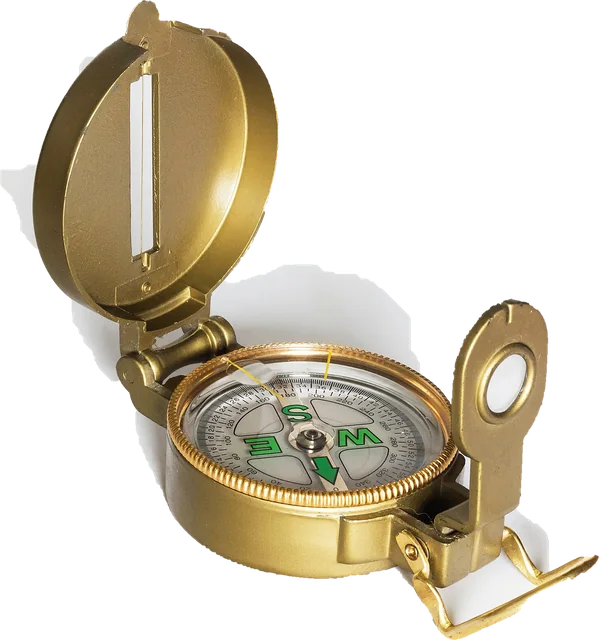 Online compassDigital compass on your phone, with true north for your location
 Gyroscope testPhone and tablet gyroscope, accelerometer and tilt, live
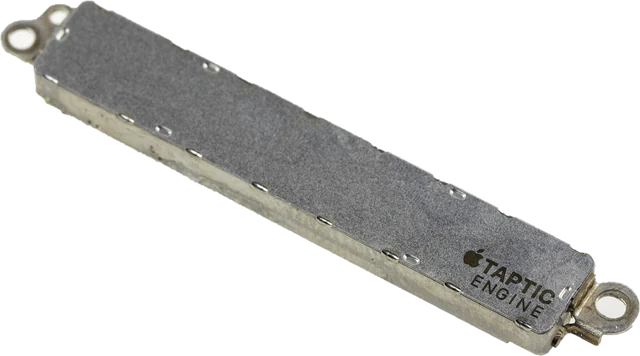 Vibration testMake your phone vibrate: patterns to test the vibration motor (Android)
 Touch screen testMulti touch points and dead spots on phones and tablets
 Dead pixel testFull screen colours to spot dead and stuck pixels
 Monitor size calculatorScreen size in inches, PPI and aspect ratio