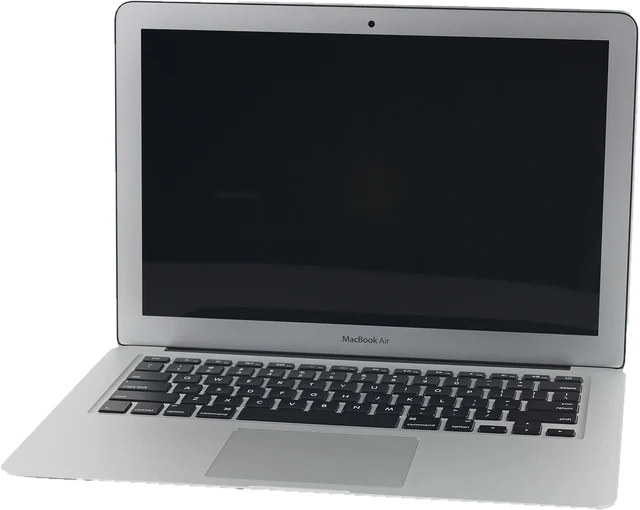
How to test a touchpad on a laptop
- Clicks. Press the left and right click areas (the lower corners, or the separate buttons above or below the pad), then tap once with one finger and once with two. A one finger tap counts as a left click and a two finger tap as a right click when tap to click is on.
- Two finger scroll. Scroll up, down, left and right inside the box. The square moves with the scroll and the counters split it by direction.
- Pinch. Pinch two fingers apart and together. The square grows and shrinks, and the pinch counter goes up.
- Cursor. Move slowly around the box and watch the blue trail. It should be smooth, with no red jumps.
- Typing. Type a few lines in the palm check box the way you normally type.
This touchpad test tool needs no install and works the same as a laptop touchpad test on a Dell, HP, Lenovo, ASUS or Acer laptop, as a MacBook trackpad test, and on a Chromebook.
What a browser can and cannot see
Be clear about the limits before you judge a result. The touchpad talks to the system, not to the browser. The system decides what your fingers mean and passes the result on as ordinary mouse clicks, scroll events and zoom events. So a web page can count clicks, read how far and in which direction each scroll step goes, and see pinch zoom, but it can never see how many fingers are on the pad or where they are. Three and four finger swipes, which switch apps and desktops, are handled by the system and never reach any page. Palm rejection also happens before the browser, so the page cannot detect it directly; the palm check measures its effect instead, by counting cursor activity while you type.
Reading the scroll results
A healthy touchpad sends a fast stream of small scroll steps, often 60 or more events per second during a swipe, with momentum that tails off after you lift your fingers. Scroll type shows Smooth steps when most events are small pixel steps. On Windows, smooth steps usually mean a Precision Touchpad driver. Notched steps, where each event is one large jump like a mouse wheel notch, usually mean an older driver that imitates a wheel. That is why scrolling feels jerky on some laptops, and installing the maker's latest driver, or the Precision driver where it exists, often fixes it.
Natural scrolling decides which way content moves. Press Check scroll direction and swipe two fingers up: with natural scrolling on, the content follows your fingers and moves up. On Windows you change it under Settings, Bluetooth and devices, Touchpad, Scroll and zoom, Scrolling direction. On a Mac it is the Natural scrolling switch in System Settings, Trackpad, Scroll and Zoom. For a mouse wheel rather than a touchpad, the scroll test counts notches and catches a wheel that jumps the wrong way.
Laptop touchpad not working? Fixes in order
- Check it is switched on. Many laptops turn the touchpad off with a key (often Fn with F5, F6, F7 or F9, marked with a touchpad icon) or a double tap in one corner. On Windows, open Settings, Bluetooth and devices, Touchpad and check the switch at the top.
- Unplug a mouse. Windows and several laptop tools can turn the touchpad off while a mouse is connected. Look for "Leave touchpad on when a mouse is connected" in the touchpad settings.
- Restart. A stuck touchpad driver often comes back after a full restart, not just sleep.
- Update or reinstall the driver. In Device Manager, look under Human Interface Devices and Mice and other pointing devices. Install the touchpad driver from your laptop maker's support page for your model, then restart.
- Check the settings. If clicks work here but taps do not, tap to click is off. If scrolling or pinch is missing, turn them on in the touchpad settings. On a Mac, check System Settings, Trackpad, Point and Click.
- Clean and dry it. Grease, moisture and lotion make the cursor jumpy. Wipe the pad with a slightly damp cloth and dry it.
- Look for hardware signs. A touchpad that rises, clicks on its own, or feels stiff can be pushed up by a swollen battery underneath. Stop using the laptop on your lap and get it checked, because a swollen battery is a safety risk.
Cursor jumping or clicking by itself
Use the cursor jump detector: move slowly inside the box for about 20 seconds without lifting your finger. Red segments on the trail are single steps much larger than the ones before them. A few jumps that line up with a resting palm or a second finger touching the pad are normal input, not a fault. Jumps while one finger moves steadily point to a dirty or damp surface, a driver problem or a failing pad. For clicks that fire on their own, watch the click counters while you hover without touching: the count should not move. If it does, turn off tap to click to test whether the pad reads light touches as taps.
Palm rejection and typing
Palm rejection is the system ignoring the side of your hand on the pad while you type. The palm check counts cursor movements and clicks that arrive less than half a second after a key press. Zero after a few lines of typing is a pass. If you get several, turn up the touchpad delay or sensitivity setting on Windows (Touchpad sensitivity, set to Low or Medium), or enable palm check in your laptop maker's touchpad app.
Other touchpads
The touchpad on a PS4 DualShock 4 (DS4) or a PS5 controller is a different device. Pressing it down counts as a button in the controller test, and the PS5 controller test can show finger positions on a DualSense touchpad in Chrome or Edge. For a touch screen on a phone, tablet or 2 in 1 laptop, use the touch screen test. To check a separate mouse, run the mouse test.
Questions
How do I test my touchpad?
Open this touchpad test on the laptop and work inside the box: click the left and right buttons (or the lower corners), tap once, scroll with two fingers up, down, left and right, and pinch in and out. Each check is counted as it works, and the verdict lists what is still left to try.
How do I test the touchpad on a laptop without software?
You do not need any touchpad test software. This online touchpad tester runs in the browser on Windows, macOS, ChromeOS and Linux. For the settings side, Windows has a Touchpad page under Settings, Bluetooth and devices, and a Mac has System Settings, Trackpad.
Can the test see how many fingers I use?
No. A browser never receives finger data from a touchpad. The system turns your fingers into clicks, scroll events and zoom events first, and that is all the page sees. Three and four finger swipes are kept by the system for switching apps and desktops, so they never reach any web page.
Why is my laptop touchpad not working?
Most often the touchpad is switched off: look for a touchpad key (often F6, F7 or F9 with Fn, or a small icon), check the Touchpad switch in Windows Settings, and unplug any mouse in case the touchpad turns off when one is connected. Then restart, and update or reinstall the touchpad driver from the laptop maker. If the cursor moves but clicks fail here, the click mechanism is the problem, not the driver.
How do I know if natural scrolling is on?
Press Check scroll direction and swipe two fingers up on the touchpad. If the content moves up with your fingers, natural scrolling is on. The test reads which way the browser was told to scroll, after the system applied your setting, so it shows what you will get in every app.
Why does pinch to zoom not work in the test?
Pinch only reaches web pages when the system sends it as zoom. Chrome, Edge and Firefox receive a pinch as a Ctrl plus scroll event, and Safari as a gesture event; both are counted here. If nothing counts, pinch to zoom is turned off in your touchpad settings, or the touchpad driver does not support it.
Can this test palm rejection?
Not directly, because a browser cannot see a palm on the touchpad. The palm check gives you an honest stand-in: type in the box with your palms resting as usual, and the page counts any cursor movement or click that arrives while you type. If you see several, raise the touchpad delay or palm check setting.
My cursor jumps around. Can the test catch that?
Yes, while the pointer is inside the box. The jump detector flags a single movement step that is much larger than the steps just before it, which is how a touchpad glitch looks. It is labelled Check, because a deliberate fast flick can look the same, so only count jumps you did not make.
Does the touchpad test work on a MacBook or a Chromebook?
Yes. The same page works as a MacBook trackpad test in Safari, Chrome or Firefox, and on a Chromebook in Chrome. Force Click and haptic feedback are not visible to web pages, but clicks, taps, two finger scroll and pinch all are.
Is there a touchpad test for mobile?
Phones and tablets have a touch screen rather than a touchpad, so use the touch screen test there. It counts fingers, finds dead zones and logs ghost touches.
More tests
 Mouse testCheck every button, side buttons and the scroll wheelDouble click testCatch a mouse that double clicks on its own
 Polling rate testSee the report rate your browser receives (Hz)Scroll wheel testFind a wheel that jumps or scrolls backwardsMouse DPI testMeasure your real DPI with a ruler or a bank card
 Keyboard testPress every key, with ISO, AZERTY and QWERTZ layouts