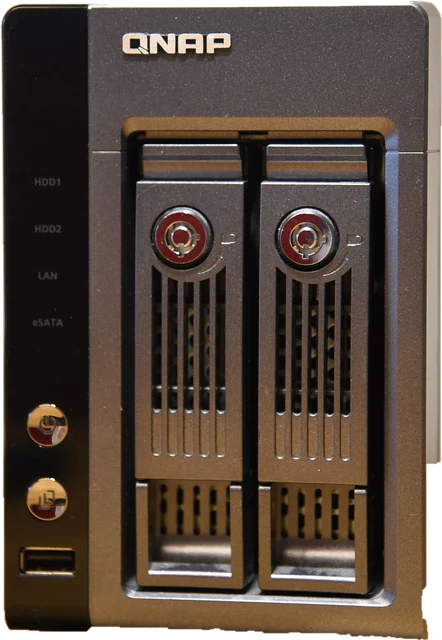
This RAID calculator works out how much of your drives you can actually use, how many can fail without losing data, and how long a rebuild would take. It covers classic RAID 0, 1, 5, 6, 10, 50 and 60 and JBOD, Synology Hybrid RAID (SHR and SHR-2) with mixed drive sizes, and ZFS RAIDZ1, RAIDZ2 and RAIDZ3, so it doubles as a Synology RAID calculator, a RAID 5 calculator and a NAS storage calculator. Results come in TB as printed on the drive and in TiB as Windows and NAS software show it, with every level side by side for the same drives, so you can see what SHR, RAID 5 and RAIDZ really give you before you buy disks or set up a NAS. It also says plainly what RAID does not do: it is not a backup.
How does a RAID calculator work?
Every level trades space for protection in a fixed way:
- Striping (RAID 0) spreads data across all drives: all the space, no protection.
- Mirroring (RAID 1, RAID 10) keeps copies: half the space or less, fast rebuilds.
- Parity (RAID 5, 6, RAIDZ) stores one, two or three drives' worth of parity so the data can be rebuilt: you lose that many drives of space.
- Classic RAID and RAIDZ count every drive as the smallest one in the set. SHR splits drives into layers so bigger drives are used too. JBOD just joins drives end to end.
Worked example: RAID 5 with 4 x 8 TB
Four 8 TB drives hold 32 TB raw. RAID 5 keeps one drive's worth for parity: (4 - 1) x 8 = 24 TB usable, which your NAS shows as 21.83 TiB. Efficiency is 75%, and the array survives one failed drive. Replacing a failed 8 TB drive means writing 8 TB: about 22 hours at 100 MB/s, during which a second failure would lose the array.
Why we built this RAID calculator
"I tested the RAID calculators people find first. Each one covered a single vendor or a single scheme, so this one puts classic RAID, SHR and RAIDZ side by side for the drives you actually have." Nitin Raja
When we compared the RAID calculators that rank in October 2026, each covered one vendor or one scheme. Synology's own calculator handles Synology storage types, generic calculators handle classic RAID levels, and ZFS users work out RAIDZ by hand or with separate tools. So the questions people actually have when they plan a NAS, such as "how much more do I get from SHR than RAID 5 with these drives?" or "is RAIDZ2 worth the space over RAIDZ1?", mean visiting several sites and converting units in between.
Three more things kept coming up. Drives are sold in TB but shown in TiB, which is why a new 8 TB drive appears as 7.27 TB and looks like missing space. Mixed drive sizes quietly waste space in classic RAID. And a rebuild of a large drive takes many hours with reduced protection, which few calculators mention, along with the plain fact that RAID is not a backup. This page puts classic RAID, Synology SHR and ZFS RAIDZ side by side for your drives, in both units, with the rebuild time and the backup warning in every result.
How we calculate RAID capacity
The inputs are the RAID level and your drives as rows of "how many x size" (up to four sizes, up to 24 drives a row), plus under More options the number of groups for RAID 50 and 60, the rebuild speed and how full a ZFS pool is. The code applies the documented rule for each level:
- Classic RAID and RAIDZ: every drive counts as the smallest one. RAID 5 = (N - 1) x smallest, RAID 6 = (N - 2) x smallest, RAID 10 = N / 2 x smallest, RAID 50 and 60 give up one or two drives per group, RAIDZ1/2/3 = (N - P) x smallest as in the OpenZFS documentation. JBOD adds all drives.
- SHR: the total minus the largest drive; SHR-2: the total minus the two largest, which is what Synology's layering of mixed drives works out to.
- ZFS slop space: 1/32 of the pool, capped at 128 GiB, from the OpenZFS source.
- TiB = TB x 10^12 / 2^40 (about 0.9095).
- Rebuild time = data written to the new drive (the smallest drive's size in classic RAID, the largest drive in SHR, used data in ZFS) / rebuild speed.
- Speed notes are textbook multiples of one drive and the parity write cost, not a benchmark.
It does not measure your drives, their health or real throughput, and usable space is before file system overhead. Sources were last checked October 24, 2026.
How to use the RAID calculator: step by step
Step 1: Choose the RAID level
Classic RAID 0, 1, 5, 6, 10, 50, 60 and JBOD; Synology SHR and SHR-2; or ZFS RAIDZ1, RAIDZ2 and RAIDZ3. Not sure? Pick the one your NAS suggests and compare the others in the table under the result.
Step 2: Add your drives
Choose how many drives and their size. For mixed sizes, add a second row, for example 2 x 4 TB and 2 x 8 TB. Sizes are in TB as printed on the box.
Step 3: Set the extras under More options
Groups for RAID 50 and 60, the rebuild speed to assume, and how full a ZFS pool is, which sets how long a resilver takes.
Step 4: Read the usable space and fault tolerance
You get usable space in TB and in TiB (what your operating system shows), how many drives can fail, the share of raw space you keep, and a bar of usable, protection and unused space.
Step 5: Compare levels and plan the rebuild
The table shows every level for the same drives side by side, with speed notes and a rebuild time estimate. Share the link to keep the setup.
RAID levels compared
N is the number of drives. "Can fail" is how many drives can fail at once with no data lost.
| Level | Min drives | Usable space | Can fail |
|---|---|---|---|
| RAID 0 | 2 | N x smallest | None |
| RAID 1 | 2 | Smallest drive | N - 1 |
| RAID 5 | 3 | (N - 1) x smallest | 1 |
| RAID 6 | 4 | (N - 2) x smallest | 2 |
| RAID 10 | 4, even | N / 2 x smallest | 1 (up to one per mirror) |
| RAID 50 | 6 | (N - groups) x smallest | 1 (up to one per group) |
| RAID 60 | 8 | (N - 2 x groups) x smallest | 2 (up to two per group) |
| JBOD | 1 | Sum of all drives | None |
| SHR | 1 (2 for protection) | Sum - largest drive | 1 |
| SHR-2 | 4 | Sum - two largest drives | 2 |
| RAIDZ1 | 2 (3 to 9 advised) | (N - 1) x smallest | 1 |
| RAIDZ2 | 3 | (N - 2) x smallest | 2 |
| RAIDZ3 | 4 | (N - 3) x smallest | 3 |
RAID 5 vs RAID 6 vs RAID 10
- RAID 5: the most space for one-drive protection. Fine for smaller drives and 3 to 5 drive arrays; risky during long rebuilds of big drives.
- RAID 6: gives up a second drive of space to survive any two failures, which also covers a failure during a rebuild. The usual choice for 6 or more large drives.
- RAID 10: half the space, but the fastest random writes and the quickest rebuild, because a rebuild only copies one mirror. It survives one failure for sure, more if they hit different mirrors.
With four 8 TB drives: RAID 5 gives 24 TB with one failure covered, RAID 6 and RAID 10 both give 16 TB; RAID 6 survives any two failures, RAID 10 only some pairs.
Synology RAID calculator: how SHR and SHR-2 work
Synology Hybrid RAID divides each drive into chunks and builds protected layers across the drives that reach each size, so bigger drives are not cut down to the smallest one. With one-drive protection the usable space works out to the total minus the largest drive; with SHR-2 to the total minus the two largest. SHR needs two drives for protection and SHR-2 needs four, and Synology says plainly in its own guide that RAID, classic or SHR, is not a backup solution.
Worked example: SHR with 2 x 4 TB + 2 x 8 TB
Raw space is 24 TB. SHR builds a RAID 5 layer across the first 4 TB of all four drives (12 TB usable) and a mirror across the top 4 TB of the two 8 TB drives (4 TB usable): 16 TB usable (14.55 TiB), one failed drive covered. Classic RAID 5 on the same drives counts each as 4 TB and gives only 12 TB, leaving 8 TB unused.
| Drives | Raw | SHR | RAID 5 (or 1) | SHR-2 | RAID 6 |
|---|---|---|---|---|---|
| 1 x 4 + 1 x 8 TB | 12 TB | 4 TB | 4 TB | needs 4 drives | needs 4 drives |
| 2 x 4 + 1 x 8 TB | 16 TB | 8 TB | 8 TB | needs 4 drives | needs 4 drives |
| 2 x 4 + 2 x 8 TB | 24 TB | 16 TB | 12 TB | 8 TB | 8 TB |
| 1 x 2 + 1 x 4 + 1 x 6 + 1 x 8 TB | 20 TB | 12 TB | 6 TB | 6 TB | 4 TB |
| 3 x 8 + 1 x 16 TB | 40 TB | 24 TB | 24 TB | 16 TB | 16 TB |
| 1 x 4 + 1 x 8 + 1 x 12 + 1 x 16 + 1 x 20 TB | 60 TB | 40 TB | 16 TB | 24 TB | 12 TB |
| 2 x 12 + 2 x 16 + 2 x 20 TB | 96 TB | 76 TB | 60 TB | 56 TB | 48 TB |
The gap grows with the spread of sizes. With equal drives, SHR gives the same space as RAID 5 and SHR-2 the same as RAID 6. SHR also grows more easily: once two drives have been replaced with bigger ones, the pool can expand.
ZFS RAIDZ calculator: RAIDZ1, RAIDZ2 and RAIDZ3
The OpenZFS documentation puts it simply: a RAIDZ group of N disks of size X with P parity disks holds about (N - P) x X. RAIDZ1, 2 and 3 survive one, two or three failed disks, a group needs at least one more disk than its parity, and 3 to 9 disks per group are advised. Two ZFS details matter for real space:
- Slop space: ZFS will not let the last 1/32 (3.2%) of a pool fill, capped at 128 GiB in current OpenZFS, so on big pools the cap applies.
- Record size: with the default 128K records, space efficiency is close to (N - P) / N; very small records on RAIDZ waste more on parity and padding.
Worked example: RAIDZ2 with 6 x 12 TB
(6 - 2) x 12 = 48 TB, or 43.66 TiB, with any two disks able to fail. ZFS keeps back the 128 GiB slop cap (0.13 TiB), leaving about 43.53 TiB to write. A resilver copies only used data: with the pool half full that is 6 TB per disk, about 17 hours at 100 MB/s. Since OpenZFS 2.3 you can also widen an existing RAIDZ group by adding a disk, though data written before keeps its old parity ratio until it is rewritten.
Why does my drive show less space? TB vs TiB
Drive makers sell in decimal terabytes (10^12 bytes). Windows, and many NAS and Linux tools, count in binary units (2^40 bytes, properly called TiB) but often still label them TB. The calculator shows both.
| On the box | 1 TB | 2 TB | 4 TB | 8 TB | 12 TB | 16 TB | 20 TB | 24 TB |
|---|---|---|---|---|---|---|---|---|
| Shown as | 0.91 TiB | 1.82 TiB | 3.64 TiB | 7.28 TiB | 10.91 TiB | 14.55 TiB | 18.19 TiB | 21.83 TiB |
Can you mix drive sizes in RAID?
Yes, with a cost. Classic RAID and RAIDZ use only as much of each drive as the smallest one has, so a 4 TB drive in a set of 8 TB drives turns every drive into 4 TB until it is replaced. SHR uses the extra space as long as at least two drives reach that size, and JBOD uses everything with no protection. If you plan to grow over time with bigger drives, SHR or a pool of mirrors is the flexible choice.
How long does a RAID rebuild take?
A rebuild writes the whole replacement drive (classic RAID and SHR) or the used data on it (ZFS). Time = data / speed. Large NAS drives sustain about 220 to 285 MB/s at best by their makers' data sheets, but a rebuild alongside normal use usually runs far slower.
| Drive size | 50 MB/s | 100 MB/s | 200 MB/s |
|---|---|---|---|
| 4 TB | 22 h | 11 h | 5.6 h |
| 8 TB | 44 h | 22 h | 11 h |
| 12 TB | 67 h | 33 h | 17 h |
| 16 TB | 89 h | 44 h | 22 h |
| 20 TB | 111 h | 56 h | 28 h |
| 24 TB | 133 h | 67 h | 33 h |
During a single-parity rebuild there is no protection left, and every sector of the other drives has to be read. Drive data sheets give an unrecoverable read error rate; Seagate's IronWolf Pro, for example, lists at most 1 per 10^15 bits read. That is why double parity is the common advice for large drives.
RAID performance: read and write speed by level
- RAID 0: reads and writes scale with the number of drives.
- RAID 1 and RAID 10: reads can use every copy; writes go to each mirror, so RAID 10 writes at about half the drive count. The best for random writes and databases.
- RAID 5 and 6: sequential reads and writes scale with the data drives, but each small random write costs 4 (RAID 5) or 6 (RAID 6) disk operations to update parity.
- RAIDZ: streaming bandwidth scales with the data disks; random reads run at about the speed of one disk, and write IOPS are those of the slowest disk in the group, by the OpenZFS documentation.
- The network: a 1 Gb/s link carries about 110 MB/s, so a home NAS with three or more hard drives is usually limited by the network, not the array.
Is RAID a backup?
No. RAID keeps your data available when a drive fails. It copies mistakes, deletions and ransomware to every drive instantly, and a power surge, a failed NAS, fire or theft takes the whole array at once. Keep at least one backup on a different device, ideally one off site or in the cloud; a common rule is three copies, on two kinds of media, one of them off site.
How accurate is this RAID calculator?
- Capacity follows the documented rules for each level; usable space is before the file system. Btrfs or ext4 on a NAS, and ZFS metadata, take a further few percent.
- RAID 0 and JBOD on some systems (Linux md RAID 0) can use mixed sizes fully; we count RAID 0 as most NAS and controllers do, by the smallest drive.
- SHR follows Synology's published layering; Synology's own RAID calculator is the final word for a given model.
- Speed and rebuild times are estimates from simple rules, not benchmarks. Your controller, CPU, network and how busy the array is decide the real figures.
Sources
Checked on October 24, 2026:
- Synology Knowledge Center: What is Synology Hybrid RAID (SHR)?
- Synology RAID Calculator
- OpenZFS documentation: RAIDZ
- OpenZFS source: spa_misc.c (slop space)
- OpenZFS 2.3.0 release notes (RAIDZ expansion)
- Seagate IronWolf Pro data sheet
Why this RAID calculator is different
- Three schemes in one place: classic RAID, Synology SHR and ZFS RAIDZ, with every level for your drives in one table.
- Mixed drive sizes, with the unused space shown rather than hidden.
- TB and TiB in every result, so the number matches what your NAS will show.
- Rebuild time and the backup warning in every result, with the method shown and the sources linked.
- Starts empty, needs no account, runs in your browser, and the share link restores your drives.
We looked at the RAID calculators that rank first in October 2026. They vary, so the right-hand column says "often" or "some" where that is the honest summary.
| This calculator | Typical RAID calculator | |
|---|---|---|
| Schemes | Classic RAID, Synology SHR and ZFS RAIDZ in one place | Often one vendor or one scheme |
| Mixed drive sizes | Yes, any mix of up to four sizes | Some; vendor tools for their own scheme |
| TB and TiB | Both, every result | Often TB only |
| Side by side | Every level for your drives in one table | Usually one level at a time |
| Rebuild time | Estimate with your rebuild speed and ZFS pool fill | Rarely |
| Backup warning | Always shown | Some |
Setting up a home server? The internet speed calculator shows the upload you need for remote access and cloud backup, and the PSU calculator sizes a power supply for a self-built NAS.
RAID calculator FAQ
How do you calculate RAID 5 capacity?
Usable space = (number of drives - 1) x the smallest drive. Four 8 TB drives give 3 x 8 = 24 TB, which Windows and most NAS software show as 21.83 TiB. One drive's worth of space holds parity, so the array survives one failed drive.
How much space do I get with SHR on mixed drives?
With one-drive protection, SHR gives the total of all drives minus the largest one. Two 4 TB plus two 8 TB drives give 24 - 8 = 16 TB, where classic RAID 5 gives only 12 TB. SHR-2 gives the total minus the two largest drives.
How much usable space does RAIDZ2 give?
About (number of drives - 2) x the smallest drive. Six 12 TB drives give 48 TB, or 43.66 TiB, and ZFS keeps back up to 128 GiB of slop space, leaving about 43.53 TiB to write.
Is RAID 5 safe with large drives?
It works, but a rebuild of a large drive takes a day or more, and the array has no protection left until it finishes. If a second drive fails or a sector cannot be read during that time, data can be lost. For drives of 8 TB and up, many people choose RAID 6, SHR-2 or RAIDZ2.
Why does my 8 TB drive show as 7.27 TB?
Drive makers count 1 TB as 1,000,000,000,000 bytes; Windows and many NAS screens count in TiB (1,099,511,627,776 bytes) but still write "TB". 8 TB is 7.28 TiB. No space is missing.
Can I mix drive sizes in RAID?
Yes, but classic RAID and ZFS RAIDZ treat every drive as the smallest one, so the extra space is unused until the smaller drives are replaced. Synology SHR and JBOD use mixed sizes better.
How long does a RAID rebuild take?
Roughly the drive size divided by the rebuild speed. A 12 TB drive at 100 MB/s takes about 33 hours; at 200 MB/s about 17 hours. A busy array rebuilds slower. ZFS only copies used data, so a half-full pool resilvers in about half the time.
Is RAID a backup?
No. RAID keeps a NAS running when a drive fails. It does not protect against deleted files, ransomware, a failed NAS, fire or theft, because every copy is in the same box. Keep a separate backup on another device or in the cloud.
Related tools
 Internet speed calculatorThe download and upload speed your home needs for streaming, gaming and calls
 PSU calculatorPower supply size, PC wattage and running cost
 Can my PC run itCheck popular games against your graphics card, CPU and RAM, no download
 CPU stress testEvery processor thread at full load, with a throughput chart over time
 Ping testPing, jitter and lag to servers worldwide
 Bottleneck calculatorWhich part limits first, CPU or GPU, at 1080p, 1440p and 4K